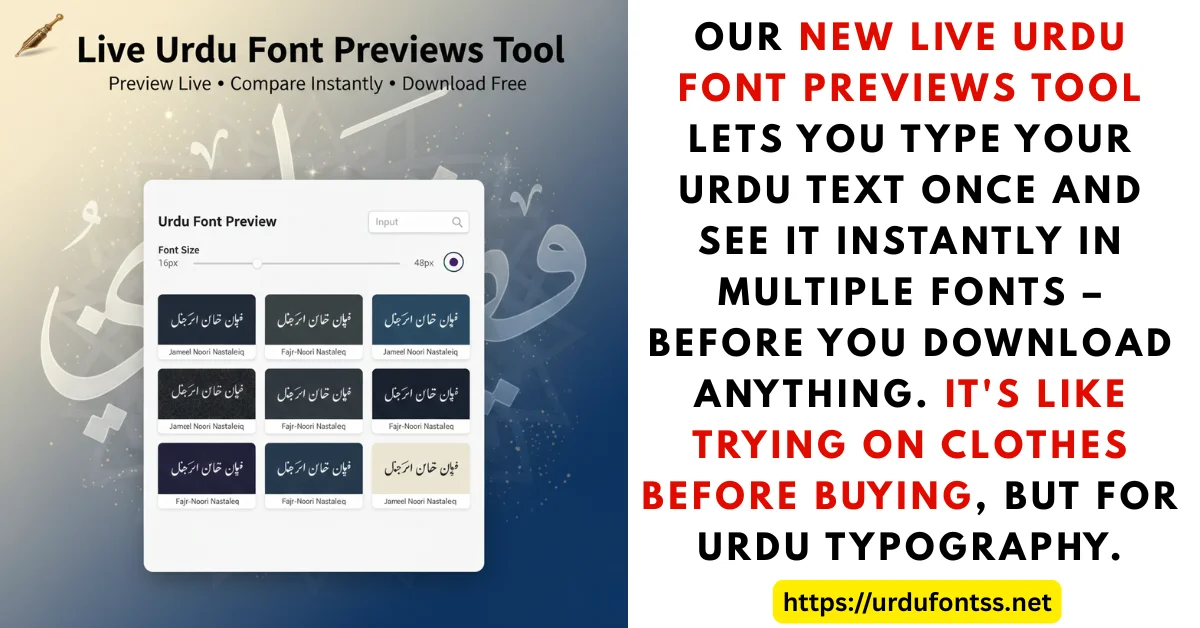
Urdu Font Preview Tool

The Urdu Font Preview Tool shows your own Urdu text live in every font on this site before you download anything. Type once, and the same line appears in Jameel Noori Nastaleeq, Urdu Naskh Unicode, Tehreer, the UL family and more — adjust the size and colours, compare the styles side by side, then export a PNG or download the TTF of the font you like. It runs in the browser, free, with no signup.
Table of Content
Table of Contents
What This Tool Does
- Live preview of your own text: type any Urdu sentence once and see it rendered in every font in the tool — no need to install anything first.
- Side-by-side comparison: the same text appears in Nastaliq, Naskh and display fonts at once, so style differences are obvious.
- Styling controls: change the font size with the slider and adjust the text and background colours to test readability.
- Free exports: save the preview as a PNG or a transparent PNG for mockups, or download the font’s TTF to use in your own software. No signup, no watermark.
- Works on mobile: the tool is responsive — previewing on your phone works the same as on a desktop.
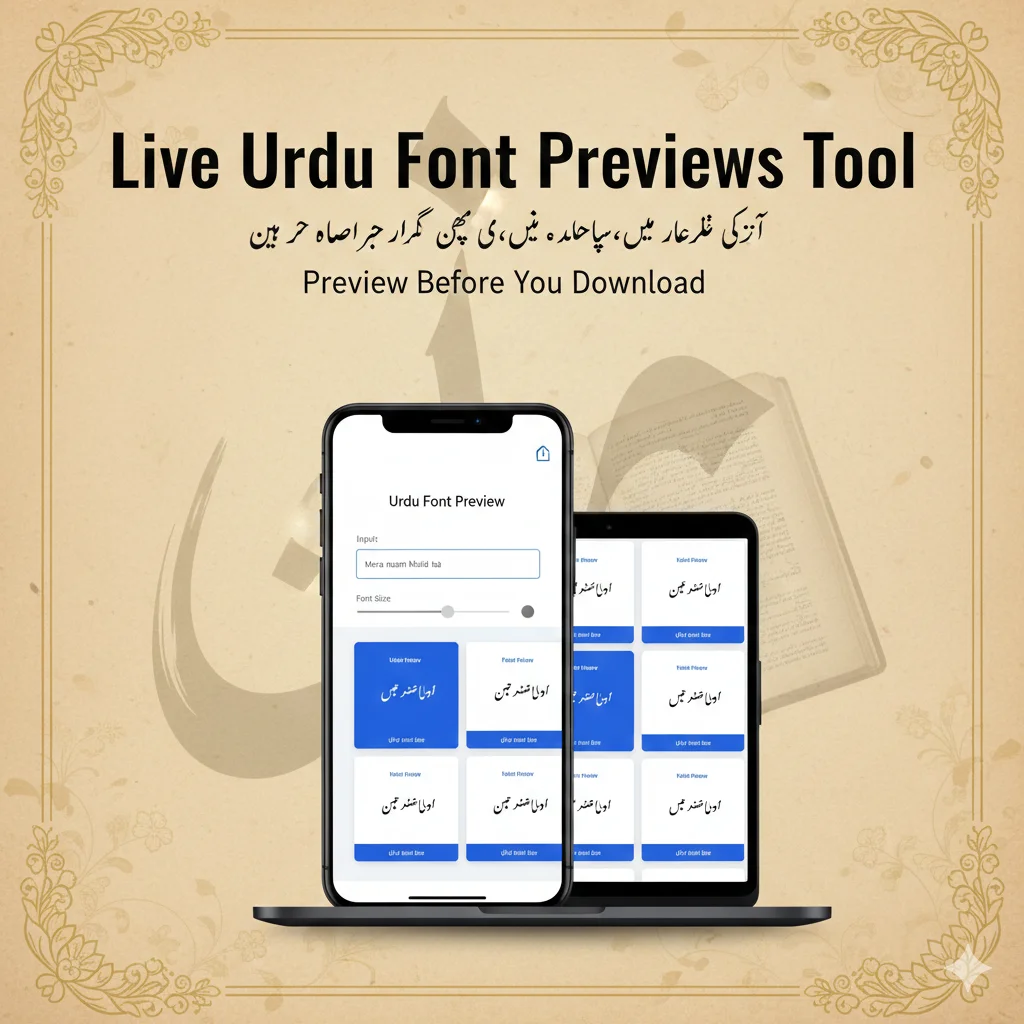
New – Compare 2 fonts: above the preview area, switch to “Compare 2 fonts”, choose Font A and Font B from the dropdowns, and type your text once. The same text is shown side by side in both fonts at the same size, with its own size slider and Copy button, so the difference is visible at a glance. Switch back to “Single-font preview” at any time; fonts are rendered in the page only and no font file is downloaded.
How to Use the Tool — Step by Step
- Type your Urdu text in the text box at the top of the tool — every preview card updates as you type.
- Adjust the font size with the slider to see how the font behaves at headline size and at small sizes.
- Change the colours — set the text and background colours to match your design (for example dark text on a light page).
- Compare the fonts — scroll through the cards and pick the one whose style fits your project: Nastaliq for traditional designs, Naskh for clean reading, display fonts for headlines.
- Export or download: save the preview as a PNG (or transparent PNG) for a mockup, or click the font’s download to get its TTF for your computer or phone.
What You Can Export
- PNG image: a picture of the preview — use it in client mockups, thumbnails and social posts.
- Transparent PNG: the same preview without a background — place it over any design.
- TTF font file: the font itself, for installing on Windows, Mac, Android or inside apps like PixelLab and CapCut. See our PC install guide and Android install guide.
Popular Urdu Fonts in the Preview Tool
These are some of the fonts you can preview live in the tool — click through to each font’s page for the full download:
- Jameel Noori Nastaleeq — the classic Nastaliq, the default choice for Urdu text.
- Jameel Noori Nastaleeq Kasheeda — Nastaliq with stretched letterforms for headlines.
- Urdu Naskh Unicode — clean Naskh, the most readable at small sizes.
- Tehreer Regular — a formal Naskh-style face for documents.
- Urdu Nastaliq Fonts collection — the full Nastaliq family in one category.
- Talat Unicode — a neat Naskh from the UL family.
- Unwan Unicode — a bold headline-style face.
- SF Visakh Regular — a modern display face for thumbnails and posters.
For the complete library, browse the Urdu fonts category.
Troubleshooting
- Text looks disconnected in a card: retype the text in the input box — pasted text from apps like InPage can carry invisible formatting. All fonts in the tool shape Unicode Urdu correctly.
- Download does nothing: allow downloads for this site in your browser; ad blockers sometimes interfere with the export buttons.
- A card shows boxes: the card is trying to render with a font your browser cannot reach — reload the page and try again.
Common Problems & Solutions
| Problem | Solution |
|---|---|
| I like a font — how do I get it? | Click the font’s card/download option to get the TTF, then install it with our PC or Android install guide |
| The preview looks different after installing | Make sure you installed the same font file — some fonts have similar names (e.g. Nastaleeq vs Kasheeda) |
| Can I use the PNG in a client project? | The mockup image is yours to use; check the font’s licence before using the font itself commercially |
| Does the tool cost anything? | No — previewing, PNG export and TTF downloads are all free, with no signup |
Final Words
Choosing a font from a download list is guesswork — previewing your own text removes the guess. Type your headline in the tool above, compare it across every style, and only then download the winner. If you design for billboards, the same text can also be tested on real signage mockups with our billboard preview tool.
Frequently Asked Questions (FAQs)
Is the Live Urdu Font Preview tool really free?
Yes — typing, previewing, PNG export and TTF downloads are all free, with no signup and no watermark.
How many fonts can I preview at once?
The tool shows every font in its list at once — your typed text appears in each font’s card, so you can compare them side by side. New fonts added to the site appear in the tool automatically.
Can I download the fonts I preview?
Yes — each font has a download option that gives you the TTF, which you can install on Windows, Mac or Android, or import into apps like PixelLab and CapCut.
Why do some fonts look different than expected?
Each typeface has its own letterforms — Nastaliq slants and joins differently from Naskh. That is exactly what the tool is for: seeing the real difference before you commit.
Why is the Transparent PNG option useful?
A transparent PNG has no background, so you can place the preview text over any image or design — handy for thumbnails, posters and social posts.
Does the tool work on mobile?
Yes — the tool is responsive and works in mobile browsers. Type, preview and export from your phone.
My text shows boxes in a preview card. What now?
Reload the page and retype the text — the card could not load that font. If it persists, that font file may need re-downloading from its page.
Can I request new fonts in the tool?
New fonts added to the site appear in the tool automatically — check the Urdu fonts category for the latest additions.