Download and Install Urdu Fonts on PC (2026 Guide)

To download and install Urdu fonts on a PC, download the free TTF file from urdufontss.net, then right-click the TTF file and choose Install — the font is ready to use in Word and other apps after you restart them. This guide covers Windows PC only. If you are on a phone, use our separate Android install guide instead.
📱 On Android? The steps below are for Windows PC and do not apply to phones. Follow our guide: How to Download and Install Urdu Fonts from a Trusted Website (Android). Mac users can find their steps in the User Guide section.
Table of Content
Table of Contents
What You Need Before You Start
- A PC running Windows 10 or Windows 11
- A web browser (Chrome, Edge, or Firefox — any of them works)
- Nothing to install for ZIP files: Windows opens ZIP files natively, so you do not need WinRAR or 7-Zip
- Fonts from urdufontss.net come as TTF or OTF files (sometimes inside a ZIP) — both install on Windows the same way
How to Download Urdu Fonts from urdufontss.net on PC
Follow these steps in order — the whole process takes less than two minutes:
Step 1: Open the Website
Open your browser and go to urdufontss.net.
Step 2: Choose a Font
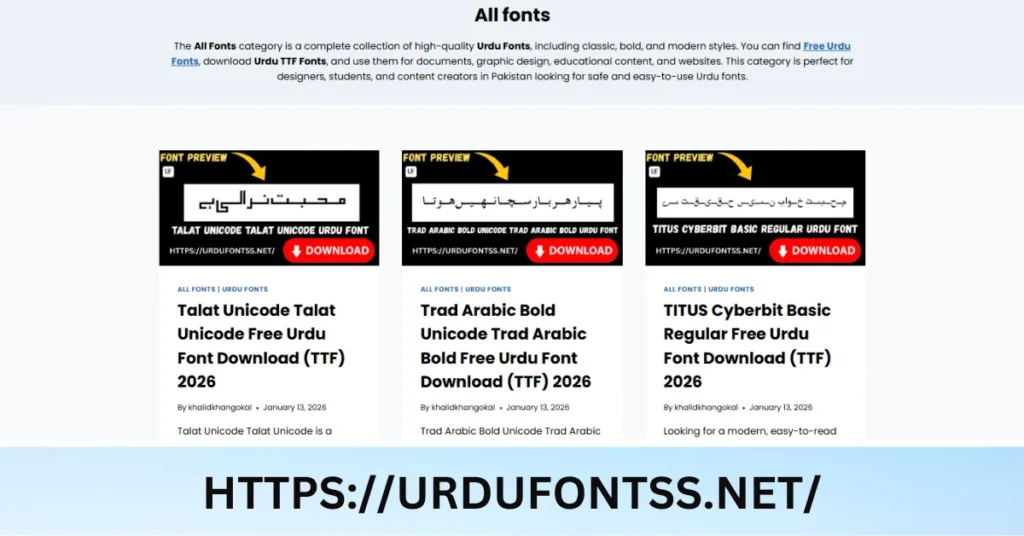
Browse all fonts and open the font page you want to download. On the font page you will see details, a preview, and a Download button. Not sure which font to pick? Try your own text in the Live Urdu Font Previews tool first.
Step 3: Click the Download Button
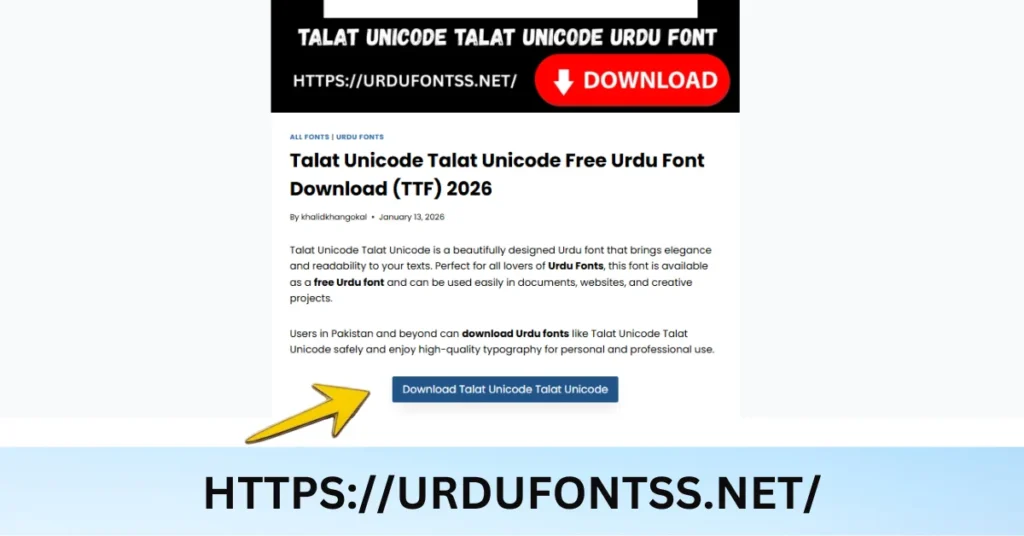
Click the Download button on the font page. The font file (usually a ZIP) starts downloading automatically.
Step 4: Find the File in Downloads
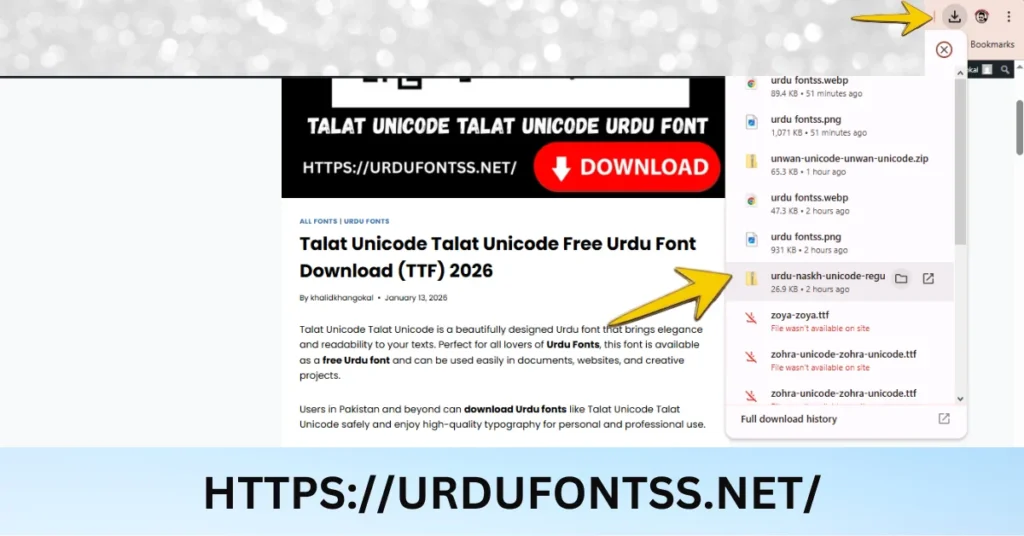
When the download finishes, press Ctrl + J in your browser to open the downloads list, or open the Downloads folder on your PC. Look for the ZIP file with the font’s name.
Step 5: Extract the ZIP File
- Right-click the ZIP file
- Choose Extract All
- Pick a folder and click Extract
- Open the extracted folder — you will see the font file ending in .ttf or .otf
If the file downloaded as a TTF directly (not zipped), skip this step and go straight to Step 6.
Step 6: Install the Font
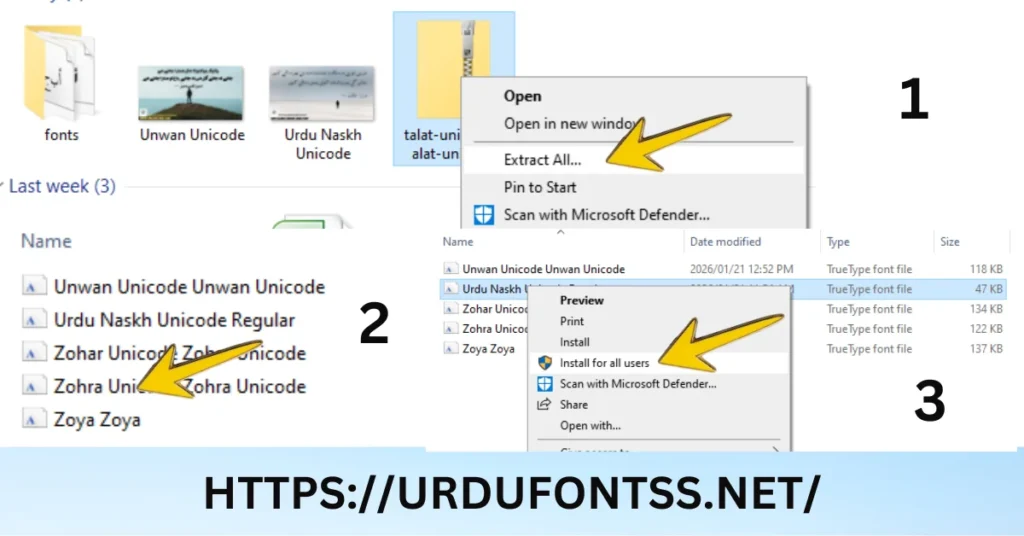
Method 1 — Quick install (recommended): Right-click the TTF or OTF file and click Install. The font installs instantly.
Method 2 — Manual install: Open Settings → Personalisation → Fonts and drag the TTF file into the window. This opens the font manager where you can also preview and uninstall fonts.
Permission blocked? If Windows refuses the install, right-click the font file and choose Install for all users — this installs it with administrator rights and also makes the font visible in every app.
Step 7: Restart Your App
Close and reopen Word, Photoshop, or whichever app you want to use the font in. Apps that were already open during installation will not show the new font until they restart.
✅ Your Urdu font is now installed and ready to use across Windows.
Tips for Using Urdu Fonts on Windows
- Make it your Word default: In Word, open the Font dialog (Ctrl + D), select your Urdu font, and click Set As Default so every new document uses it.
- Embed fonts before sharing: Go to File → Options → Save → Embed fonts in the file. This keeps Urdu text displaying correctly when someone opens your document on another PC.
- Check the install anytime: Open Settings → Personalisation → Fonts and search the font name to confirm it is installed and see a live preview.
- Install for all users when a font is missing in some apps: A per-user install sometimes does not appear in every program — the “Install for all users” option fixes that.
- Keep a backup folder: Save your downloaded TTF files in one folder. If you reinstall Windows, getting your fonts back is one click per file.
- Preview before you download: Test any font with your own Urdu text in the Live Urdu Font Previews tool so you only install fonts you actually like.
Common Problems & Fixes
| Problem | Cause | Fix |
|---|---|---|
| Font not showing after install | The app was open during installation | Close and reopen the app; restart Windows if it still does not appear |
| Boxes (□) instead of Urdu letters | The font file is non-Unicode, or the app cannot read its encoding | Go back to the font page and download the Unicode version of the font, then reinstall |
| ZIP file will not open | Corrupt or incomplete download | Delete the file and download it again from the font page |
| Install blocked / permission error | Windows needs admin approval to install fonts | Right-click the TTF file → Install for all users |
For the full list of issues — including InPage, typing, and printing problems — see our common Urdu font problems guide.
Final Words
You now know the complete Windows PC method: download the font, extract the ZIP, right-click → Install, restart your app. Pick your next font from all fonts, or test it first with the Live Urdu Font Previews tool. If you ever switch to a phone, our Android install guide covers that process step by step.
Frequently Asked Questions (FAQs)
Is it free to download Urdu fonts from urdufontss.net on PC?
Yes. The fonts on urdufontss.net are free to download and use for personal and educational purposes. Always check the licence note on the font page before using a font commercially.
Which Windows versions do these steps work on?
These steps are written for Windows 10 and Windows 11. On older versions like Windows 7 or 8, the same right-click → Install method works, but the Settings route to the Fonts folder is different.
Do I need WinRAR or 7-Zip to open the font files?
No. Windows opens ZIP files natively — right-click the ZIP and choose “Extract All”. A third-party extractor is optional and not required.
I installed the font but it does not appear in MS Word. Why?
Word was probably open during installation. Close Word completely and reopen it — the font will then appear in the font list.
The installed font shows boxes instead of Urdu letters. How do I fix it?
That font file is likely non-Unicode. Go back to the font page on urdufontss.net, download its Unicode version, and install it instead.
Can I use these fonts in Photoshop, Illustrator, or InPage?
Yes. A font installed on Windows becomes available in every desktop app. Restart the app after installing, then select the font from its font menu.
Windows says I do not have permission to install the font. What should I do?
Right-click the TTF file and choose “Install for all users” instead of “Install”. This installs the font with administrator rights and also makes it visible in every app.





55 Comments