How to Download and Install Urdu Fonts from a Trusted Website on Android – Complete Guide

To download and install Urdu fonts on Android from a trusted website, open urdufontss.net in your phone’s browser, choose any font, tap its download button to get the ZIP file, extract the ZIP with your phone’s Files app, and then open the TTF file in design or video apps such as PixelLab, CapCut, Canva, or Picsart. This guide is for Android phones and tablets. If you want the same process on a Windows PC, use the PC download and installation guide instead.
What You Need Before You Start
You do not need a computer, root access, or any paid app for this guide. Everything below works on any modern Android phone or tablet.
- An Android phone or tablet with Chrome, Samsung Internet, or any mobile browser.
- A few megabytes of free storage — most Urdu font ZIP files are between 1 and 5 MB.
- A file manager that can extract ZIP files — the built-in Files app on most phones can do this, or the free Files by Google or ZArchiver apps.
- A design or video app that supports custom fonts — PixelLab, CapCut, Canva, and Picsart all let you add your own TTF font files.
One important thing to know up front: modern Android phones do not let you install a font system-wide the way a PC does, unless the phone is rooted. So on Android the honest, working path is: download the TTF font file, then use it inside apps that support custom fonts. Every step below follows exactly that path.
Why Download Urdu Fonts from a Trusted Website?
Urdu fonts are free all over the internet — and so are the traps. Random font sites are full of fake download buttons, pop-ups that start downloads you never asked for, and ZIP files bundled with adware or junk files. A trusted website protects you from all of that, and this focus on safety is what makes this guide different from the PC installation guide: the website is the same, but the download-and-use path on Android is different.
What a trusted font website gives you:
| Reason | What It Means for You |
|---|---|
| Malware-free ZIPs | Every download is a clean font archive — no adware, no extra installers, nothing hidden inside. |
| Verified TTF files | Each font file is checked to make sure it actually opens and works in apps before it is published. |
| No fake download buttons | One real download button per font page. No banner ads pretending to be the download. |
| Correct format | Fonts come in TTF format, the format Android apps like PixelLab and CapCut accept. |
| Licence info included | The readme file inside each ZIP tells you who made the font and how you may use it. |
UrduFontss.net follows all of these rules: clean ZIP archives, one real download button per font page, and TTF files that have been checked to open correctly. That is why this guide uses it as the example site.
How to Download and Install Urdu Fonts on Android — Step by Step
Follow these seven steps in order. The screenshots below were taken on an Android phone, so what you see on your screen will look the same.
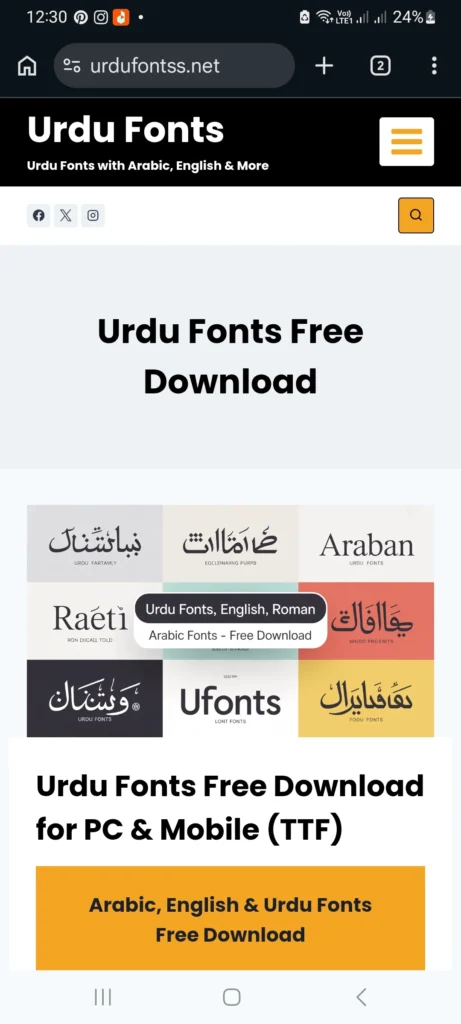
Step 1: Visit the Trusted Website
Open your phone’s browser and go to the Urdu fonts website. The site is mobile-friendly, so every button and preview works on a small screen. Bookmark the page if you plan to download several fonts.
Step 2: Select Your Desired Font
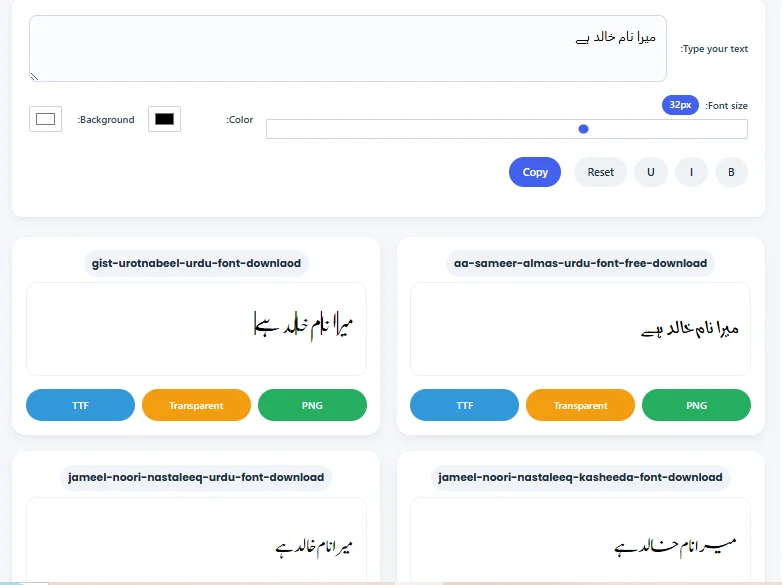
Open the Urdu fonts collection and scroll through the available fonts. Each font card shows a live preview of how the font looks, so you can judge the style before downloading.
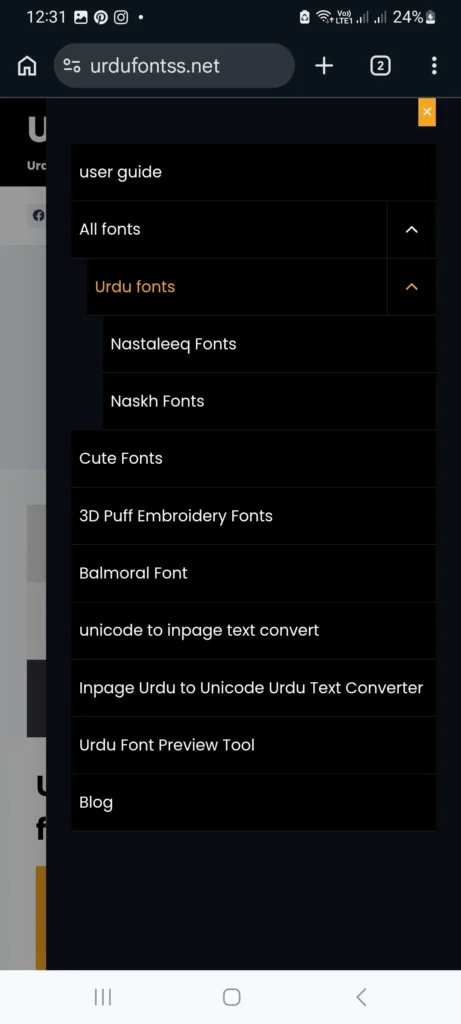
How to Select a Font:
Pick the style that fits your project: Nastaleeq fonts like Jameel Noori for traditional Urdu text, Naskh fonts for clean reading, and decorative fonts for thumbnails and social media posts. Tap the font name to open its own page with a full preview and details.
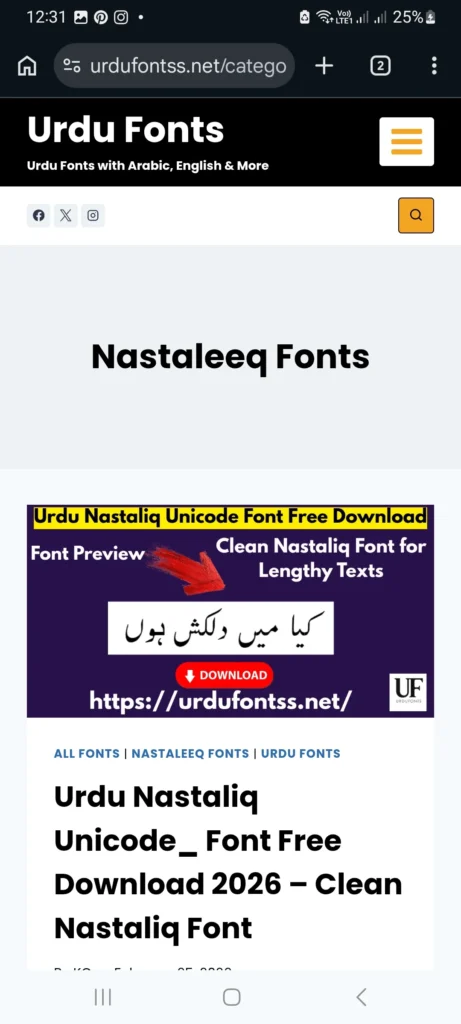
Step 3: Preview the Font
Before downloading, type your own text into the live preview tool on the font page. Try your name, a video title, or a line of poetry — the preview shows exactly how your words will look in that font. If the style fits, move on to the download. If not, go back and try another font; downloading first and checking later only wastes your time and mobile data.
Step 4: Download the Font
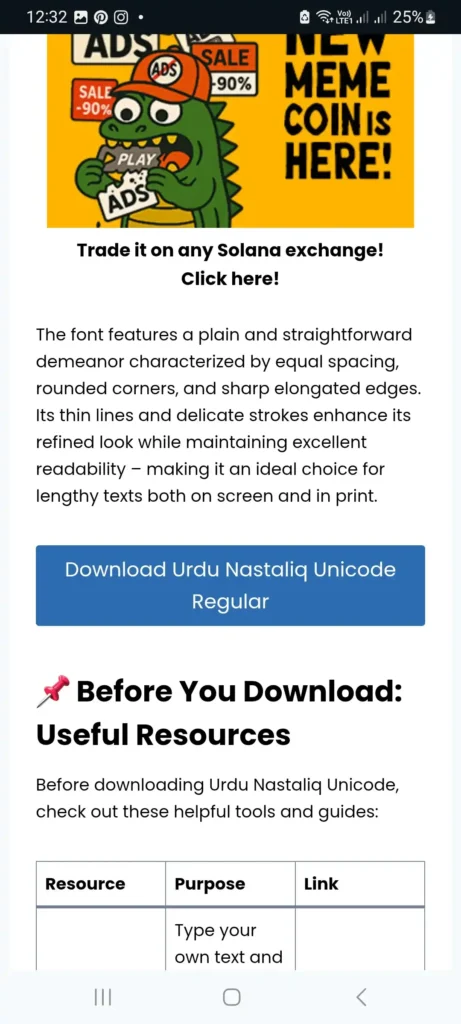
On the font’s page, tap the Download button. Your browser will save a ZIP file — usually 1 to 5 MB — to your phone’s Downloads folder. You will see a download notification in the notification bar when it finishes.
Download Steps:
- Tap the Download button on the font page.
- If the browser asks where to save, choose the Downloads folder.
- Wait for the notification bar to show Download complete.
- Do not tap any other buttons or banners — the real download button is the only one you need.
Step 5: Extract the ZIP File
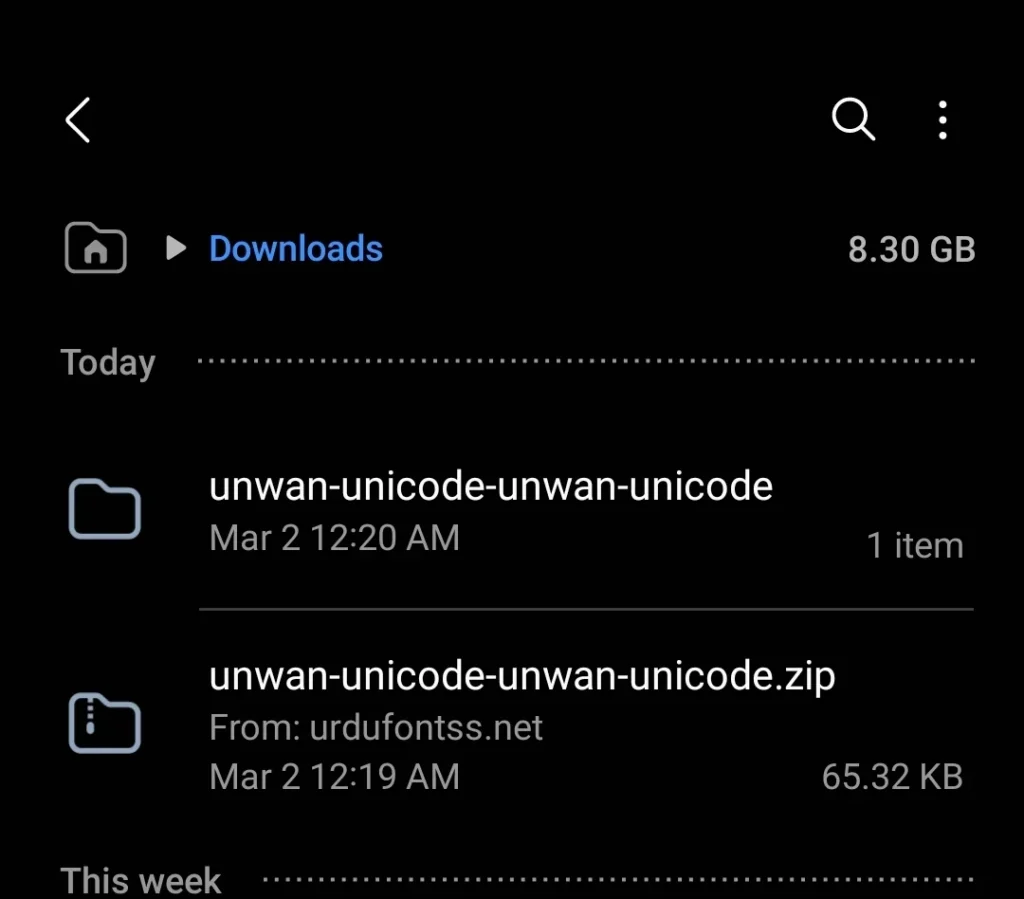
The downloaded file is a ZIP archive, not the font itself. You must extract it first. Open your phone’s Downloads folder and find the ZIP file you just downloaded.
How to Extract the ZIP on Mobile:
- Open the Files app (or Files by Google) and go to the Downloads folder.
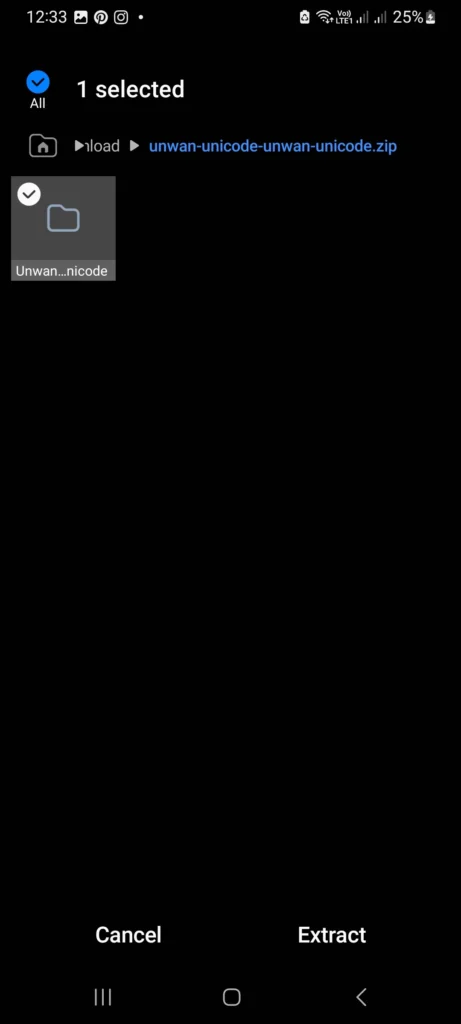
- Tap the ZIP file once. Most file managers will show an Extract option — tap it.
- If your file manager does not offer extraction, install the free ZArchiver app, open the ZIP in it, and tap Extract.
- After extraction you will see a new folder containing the font file ending in .ttf.
Step 6: Open the Font File
The TTF file is the actual font. TTF stands for TrueType Font — it is the standard font format that Android apps accept. You do not install it through the phone’s system settings (modern Android blocks that); instead, you hand this file to an app.
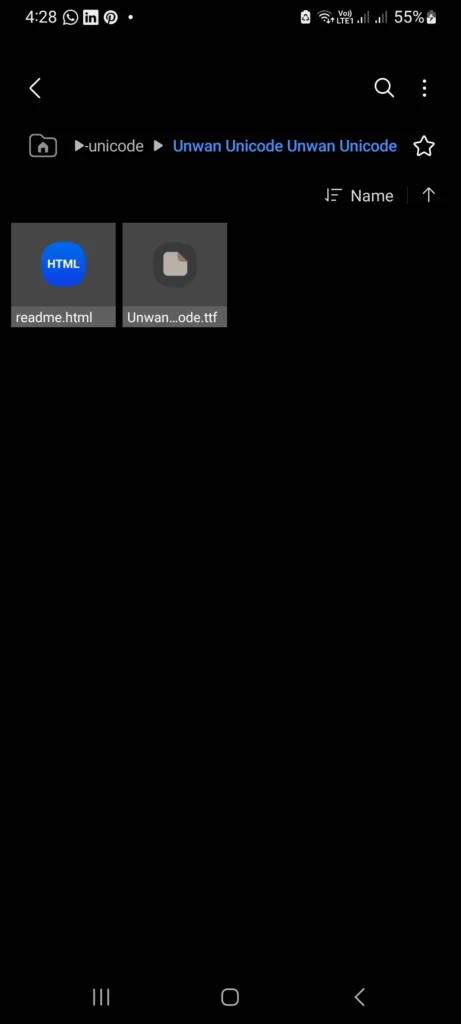
How to Open the Font File:
Open the extracted folder and tap the .ttf file. Your phone may show a small font preview screen — this just confirms the file is valid. Ignore the readme.html file in the same folder; it only contains information about the font’s designer and licence, and you do not need it to use the font.
Step 7: Use the Font in Your Apps
Now bring the TTF file into the app where you want Urdu text:
How to Use the Font:
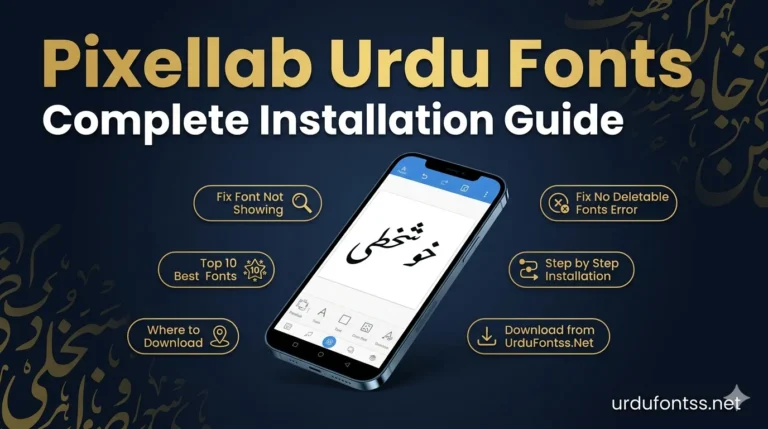
- In PixelLab, open your project, tap the font picker, choose My Fonts or Add Fonts, and select the extracted TTF file. See the full PixelLab Urdu font tutorial for screenshots.
- In CapCut, add a text layer, open the font list, and import the TTF from your Downloads folder. See the CapCut Urdu font installation guide.
- In Canva, open the text editor, use the font upload option, and add the TTF — then apply it to any text box.
- In Picsart, add text, tap the font option, and use the import/upload option to bring in the TTF file.
Once the TTF is imported, the font stays inside that app — you only import each font once per app. After that, just pick it from the app’s font list like any built-in font.
Alternative Method:
If an app does not let you import TTF files, style your text first with the site’s text tools, then save it as an image and place it on your design. This works in literally any app because it needs no font support at all.
Tips for Using Urdu Fonts in PixelLab, CapCut, Canva and Picsart
Downloading the font is only half the job. These practical tips will make your Urdu text actually look good in your projects:
- Match the font to the project: use Nastaleeq fonts like Jameel Noori for poetry and traditional designs, Naskh fonts for readable captions and subtitles, and bold decorative fonts for YouTube thumbnails.
- Check line spacing before exporting: Nastaleeq fonts have tall strokes — increase the line spacing in PixelLab or CapCut so the tops and bottoms of letters are not cut off.
- Pair Urdu with a simple English font: when a thumbnail has both languages, keep the English font plain (a clean sans-serif) so the Urdu font stays the star.
- Export at the highest quality: text edges blur on low-quality exports. In CapCut and Picsart, always export at 1080p or higher when your design has Urdu text.
- Keep your TTF files organised: create a “Fonts” folder in your Downloads so you can find and re-import a font in seconds if you switch phones.
- Check the licence before client work: read the readme.html file inside the ZIP — it tells you whether the font is free for commercial use before you use it in paid projects.
Common Problems and Fixes
| Problem | Cause | Fix |
|---|---|---|
| The ZIP file will not extract | Your file manager has no built-in extractor | Install the free ZArchiver app and extract the ZIP with it |
| I cannot find the downloaded file | It saved to a different folder | Open the Files app, check the Downloads folder, or tap the finished-download notification |
| The app shows boxes instead of Urdu letters | The TTF was not imported correctly or the file is incomplete | Re-extract the ZIP and import the TTF again; re-download from the same trusted page if the problem persists |
| The font does not appear in phone settings | Modern Android blocks system-wide font installation without root | This is expected — use the font inside apps like PixelLab, CapCut, Canva, or Picsart instead |
| The download never starts | Pop-up blocker or an interrupted connection | Allow downloads in your browser settings, keep the page open until the download finishes, and download again from the same trusted font page |
Other Urdu Fonts You May Like
Once you know the Android download process, these popular fonts are worth trying next:
- Download Jameel Noori Nastaleeq — the classic Nastaleeq font, perfect for poetry and traditional Urdu designs.
- Download Urdu Naskh Unicode — a clean, highly readable Naskh font for captions and long text.
- Download SF Koonj Regular — a stylish modern Urdu font for thumbnails and social media posts.
- Download Zohra Unicode — a smooth Unicode font that renders well in editing apps.
- Download Shamsheer Unicode — a sharp, bold style that stands out in video titles.
- Download Tehreer Regular — a neat everyday font for documents and study notes.
Why Choose UrduFontss.Net for Font Download?
There are many font sites, but few are built for mobile users. Here is what makes this one different:
- Clean, verified ZIP files — every font is checked to open correctly before publishing.
- One real download button — no fake buttons, no redirect mazes, no forced apps.
- Mobile-first pages — previews and downloads are tested on Android phones, not just desktops.
- Free tools included — a live font preview tool and text tools sit right on the site.
- Step-by-step guides — from downloading to using fonts in PixelLab and CapCut, every step is explained.
Final Words
You now know the complete, safe way to download Urdu fonts on Android from a trusted website: pick a font, download the ZIP, extract it on your phone, and use the TTF file in PixelLab, CapCut, Canva, or Picsart. Stick to trusted sources and you will never have to worry about fake buttons or infected files.
On a computer instead? The steps are different on Windows — read the complete PC guide to downloading and installing Urdu fonts.
Next steps: browse the full Urdu fonts collection to find your next font, or go back to the homepage to try the live preview tool with your own text.
Frequently Asked Questions (FAQs)
Which is the best website to download Urdu fonts?
UrduFontss.net is a trusted website for downloading Urdu fonts. Every font comes as a clean, verified ZIP with one real download button — no fake buttons, no adware, and TTF files that have been checked to work in Android apps.
How do I extract a ZIP file on Android?
Open the Files app (or Files by Google) and go to your Downloads folder. Tap the ZIP file and choose Extract. If your file manager has no extract option, install the free ZArchiver app — it extracts any ZIP in seconds.
What is a TTF file?
TTF stands for TrueType Font. It is the standard font file format that Android design and video apps accept. The TTF file inside the downloaded ZIP is the actual font — you import it into apps like PixelLab, CapCut, Canva, or Picsart to use it.
Why is the font not showing in my phone settings after downloading?
This is normal. Modern Android phones block system-wide font installation unless the phone is rooted. You cannot add the font through Settings — instead, import the TTF file directly into the app where you want to use it, such as PixelLab or CapCut.
Are these fonts free?
Yes, the fonts on UrduFontss.net are free to download and use for personal projects. Each ZIP includes a readme file with the font’s licence — check it before using a font in commercial or client work, because terms can differ per font.
What is the readme.html file?
The readme.html file sits inside every downloaded ZIP next to the TTF file. It contains extra information about the font: the designer’s name, the licence terms, and sometimes usage tips. You do not need it to use the font — you can ignore it or delete it.

41 Comments