Marhey Font Free Download (TTF)

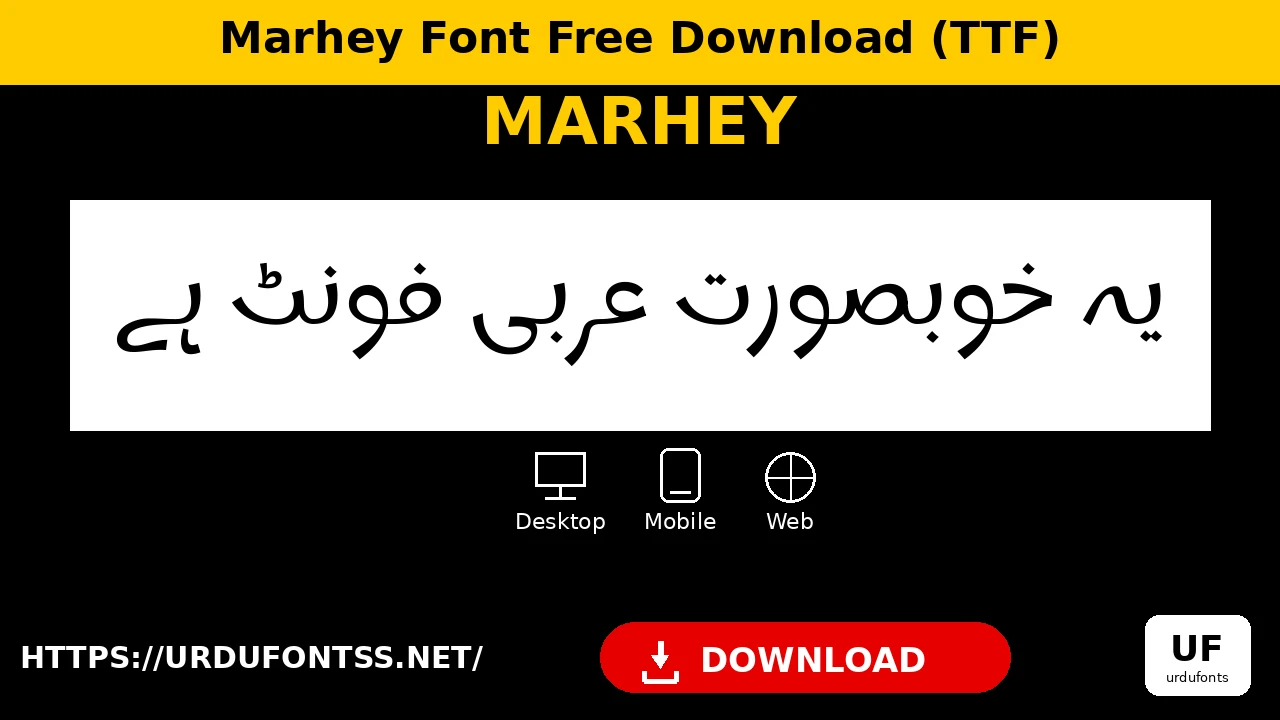
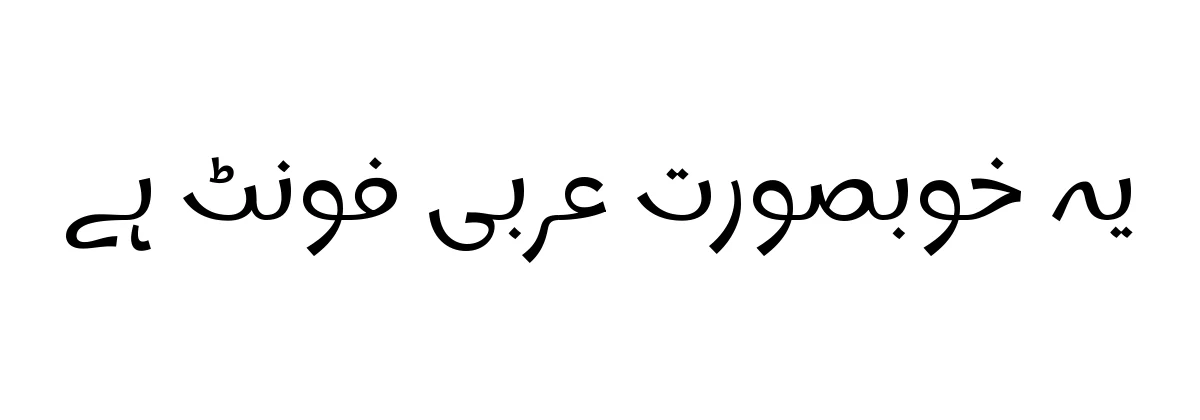
Marhey is a light, clean Naskh-style Arabic script font with full Urdu letter support, giving headings and documents a fresh, open look. Download the verified TTF file below and install it on Windows, Mac, or in your favourite mobile design apps.
Font Overview
| Feature | Details |
| Font Name | Marhey (the file’s internal family reads “Marhey Light” — that is the variable font’s default Light instance, not a different font) |
| Designer | Nur Syamsi & Bustanul Arifin |
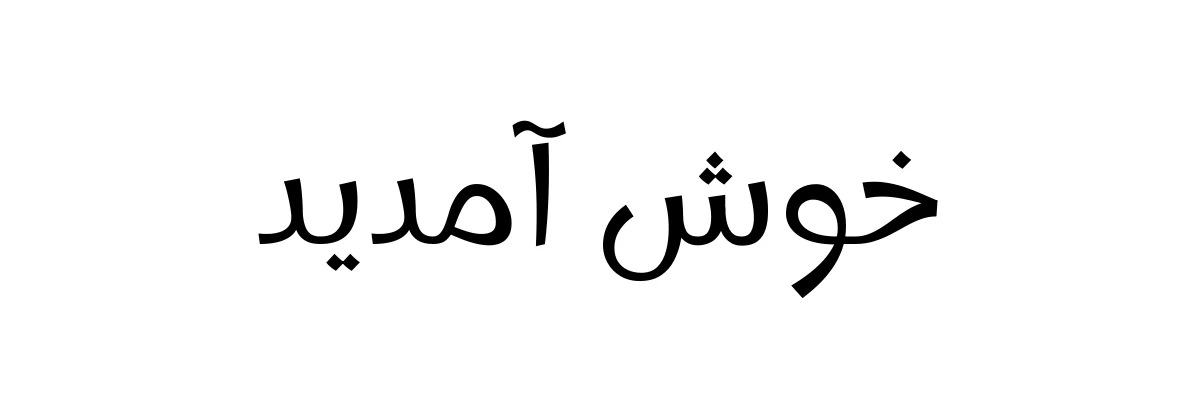
| Style | Naskh (Arabic script), Light weight — as shown in the preview renders below |
| Format | TTF (variable font, wght axis 300–700) |
| Language | Urdu (Arabic script) |
| License | SIL Open Font License 1.1 |
| Works With | MS Word, InPage, Photoshop, Illustrator + mobile apps (PixelLab, Canva) |
| Platforms | Windows, Mac, Android (in apps), iPhone/iPad (via a font installer app) |
By KG · Font file verified 27 Oct 2026: family name, format and glyph count checked from the TTF itself.
File verified 27 Oct 2026: Marhey, TTF format, 1223 glyphs, 198,704 bytes, checked from the TTF itself. The download button above serves this verified TTF file.
Variable font note: Marhey is a variable font with a weight (wght) axis running from 300 to 700, defaulting to 300 (Light). That is why the file’s internal family name reads “Marhey Light” — it is the default instance of Marhey, not a separate font. In apps that support variable fonts you can choose weights along that axis; older apps that do not support variable fonts may only show the default Light instance. The preview images on this page show the default Light instance.
Table of Content
Table of Contents
What Is Marhey?
Marhey is a Naskh-style Arabic script font: unlike sloping Nastaliq faces, its letters sit upright on a steady baseline, which keeps text easy to read at a glance. Its light default weight gives it an airy, modern feel, and its full Urdu letter coverage was checked from the font file itself before this article was written. It is a TrueType variable font, so it installs like any standard desktop or in-app font, with a weight axis for apps that support variable fonts.
If you want to compare how it looks against other faces before installing, try the live Urdu font preview tool on this site, and browse the full Urdu Fonts category for more options, including Pak Nastaleeq and AlFars 18 Aban.
Features of Marhey
- Clean Naskh letterforms — upright, steady shapes that stay readable in headings and short text.
- Light default weight — an open, airy look that suits modern designs; heavier weights are available along the variable weight axis in supporting apps.
- Full Urdu letter coverage — all 37 tested Urdu letters present in the font file.
- TrueType variable format — one TTF file with a weight axis (300–700), installing on Windows and Mac and importing into mobile design apps.
- Unicode encoding — standard Unicode code points, so typed Urdu text stays searchable and copyable.
- Works in everyday apps — Word, InPage, Photoshop, Illustrator, PixelLab and Canva.
How to Install Marhey on PC (Windows & Mac)
On Windows
- Download the TTF file using the button at the top of this page.
- Right-click the TTF file and choose Install (or Install for all users).
- Restart your app — Word, Photoshop or InPage — before the font appears in the font list.
- Select Marhey from the font list and type Urdu with right-to-left text direction switched on.
On Mac
- Download the TTF file using the button at the top of this page.
- Double-click the TTF file to open it in Font Book, then click Install Font.
- Restart your app before the font appears in the font list.
Full step-by-step help is in our PC install guide (Windows) and Mac install guide.
How to Use Marhey on Mobile Apps
Most font users today work on their phones, not on a desktop — so this section matters most. On Android and iPhone you use fonts inside design apps, not by changing the whole phone’s system font.
On Android (PixelLab, Canva and font-installer apps)
- Download the TTF file on your phone using the button at the top of this page.
- In PixelLab: open a text layer, tap the font option, choose My Fonts, and import the downloaded TTF file.
- In Canva: upload the font through the Brand Kit font upload on a plan that supports it, or use the in-app font list — see our Canva Urdu fonts guide for the exact steps.
- With a font-installer app: open the TTF in the installer app and follow its prompts to make the font available to supported apps.
- Type Urdu with an Urdu keyboard, keep the text direction right-to-left, and check that letters join correctly before exporting. Note that some mobile apps may only show the font’s default Light weight — that is normal for a variable font in an app without variable-font support.
On iPhone and iPad (via a font installer app)
- Download the TTF file on your device using the button at the top of this page.
- Open it in a font-installer app and install the font profile when asked.
- Pick Marhey inside apps that support custom fonts, such as Canva, and type Urdu with right-to-left direction on.
If the font does not appear after installing, restart the app — and see our Android install guide and common Urdu font problems guide if letters show as boxes.
How to Use Marhey on a Website
- Download the TTF file using the button at the top of this page.
- Upload it to your website (for example, your theme’s fonts folder).
- Add an @font-face rule in your CSS pointing to the file, for example:
@font-face { font-family: 'Marhey'; src: url('fonts/marhey-font-download.ttf') format('truetype'); } - Apply it to Urdu text with
font-family: 'Marhey', serif;on your Urdu content, withdir="rtl"andlang="ur"on the Urdu blocks. - Test in Chrome and Firefox — Urdu shaping differs slightly between browsers, so check a real paragraph, not just a heading.
Best Uses for Marhey
- Headings and titles — the light Naskh style stands out cleanly on posters and banners.
- Social media graphics — made for PixelLab and Canva designs on mobile.
- Short text and quotes — the open, airy letterforms read well in quote cards and thumbnails.
- Book and magazine headings — a clear heading face alongside body text; see our book publishing fonts guide for print tips.
- Educational material — steady, upright letterforms are easy to read for students.
Marhey vs Jameel Noori Nastaleeq
Jameel Noori Nastaleeq is the classic sloping Nastaliq benchmark. Marhey is different in style: upright, light Naskh rather than sloping Nastaliq, so it suits modern headings and graphics where a clean, open look matters more than calligraphic flow. Choose Jameel Noori for traditional Nastaliq documents; choose Marhey for light, modern Urdu headings. For more background on the styles, see our Urdu Nastaliq fonts history. Other recent additions in a similar spirit include AA Sameer Rafiya Unicode, AA Sameer Armaa and AA Sameer Mosan.
Frequently Asked Questions (FAQs)
Is Marhey free to download?
Yes — the TTF file linked at the top of this page is available through the Google Drive link given here, and the file was verified from the TTF itself before this article was written. Marhey is licensed under the SIL Open Font License 1.1, as stated in the font file itself.
What format is the Marhey download?
TTF (TrueType). It is a variable font with a weight axis (300–700). It installs directly on Windows and Mac and imports into mobile design apps such as PixelLab and Canva — no conversion step is needed.
Why does the font file say “Marhey Light” — is that a different font?
No. “Marhey Light” is the file’s internal family name because Light (weight 300) is the variable font’s default instance. The font itself is Marhey; in apps that support variable fonts you can choose heavier weights along the weight axis, while older apps may only show the default Light instance.
Does Marhey support all Urdu letters?
Yes — all 37 Urdu letters tested against the font file are present, including Peh, Tteh, Gaf and other Urdu-specific letters.
How do I install Marhey on Windows?
Download the TTF, right-click it and choose Install, then restart your app. The full steps are in our PC install guide.
Can I use Marhey on Android and iPhone?
Yes, inside design apps. Import the TTF in PixelLab, Canva or a font-installer app — see the mobile section above and our Android install guide. On iPhone, use a font-installer app to install the font profile, then pick Marhey inside apps that support custom fonts.
Can I use Marhey for commercial projects?
Marhey is licensed under the SIL Open Font License 1.1, as stated in the font file itself. That licence allows free use under its terms — read the licence text that comes with the font before commercial use to confirm the conditions that apply to your project.
Final Words
Marhey is a solid pick when you need a light, clean Naskh-style Urdu font that installs as a standard TTF on PC, Mac and mobile apps: download the verified file above, install it with the steps for your device, and test a real Urdu sentence before you publish. For more options, browse the Urdu Fonts category, compare with Jameel Noori Nastaleeq, or see our best Urdu fonts for designers — and if you work with InPage documents, our Unicode to InPage converter keeps your converted text moving between formats. More new fonts in this series — Cairo, Noto Kufi Arabic, Noto Sans Arabic, Reem Kufi, Reem Kufi Fun, Qahiri, Mirza, Jomhuria and Noto Sans Arabic UI — are being prepared as plain upcoming additions and are not linked here until they are live.
More Arabic fonts in this series: Cairo, Noto Kufi Arabic, Noto Sans Arabic, Reem Kufi, Reem Kufi Fun, Qahiri, Mirza, Jomhuria and Noto Sans Arabic UI.