Download and Install Urdu Font on Mac – Step-by-Step Guide

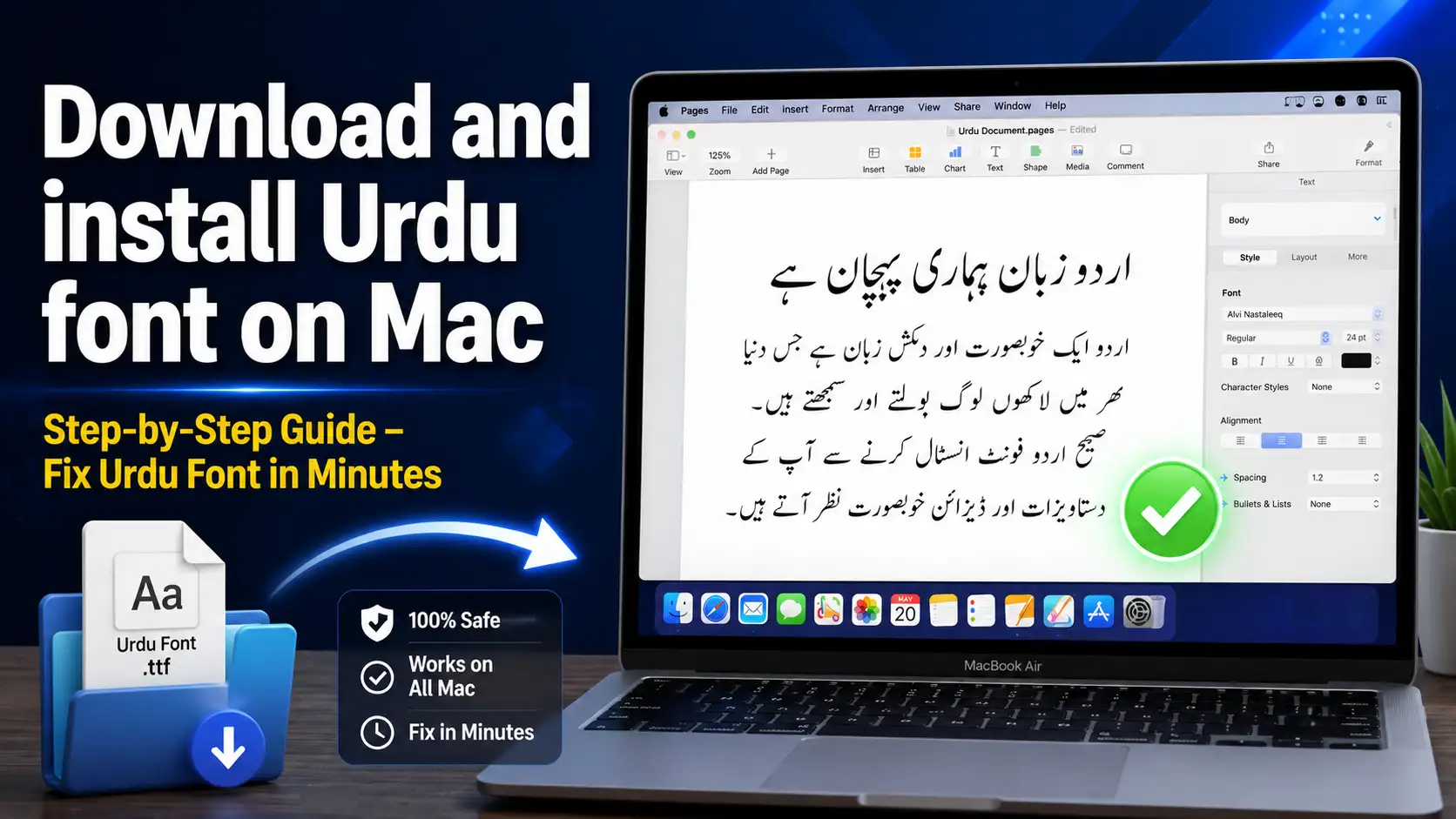
To install an Urdu font on Mac, download a Unicode TTF or OTF file, double-click it to open Apple’s Font Book, and click Install Font — the font becomes available in Pages, Word and other Mac apps immediately. Then enable the built-in Urdu keyboard in Settings so you can type in Urdu. The full process is below, with fixes for the problems Mac users meet most often.
Table of Content
Table of Contents
What You Need
- A Mac running a recent macOS version.
- A Unicode Urdu font file (TTF or OTF). Unicode fonts are required — legacy non-Unicode fonts made for old Windows apps or InPage will not render correctly on a Mac.
- About five minutes. No third-party app is needed — Apple’s built-in Font Book handles the install.
Step 1: Download a Unicode Urdu Font
Choose a Unicode-labelled TTF or OTF font — the Urdu fonts category on this site has the full collection with direct downloads, and our guide to downloading from trusted sources explains what red flags to avoid. Safe-downloading checklist:
- Never download fonts as .exe files — those are Windows executables, not fonts.
- Avoid pop-up download sites and pages that bundle installers.
- Confirm the downloaded file ends in .ttf or .otf before you open it.
- Check the font’s licence before commercial use — the download page states what is allowed.
Step 2: Install the Font with Font Book
Font Book is Apple’s built-in font manager — the whole install is three clicks:
- Find the downloaded .ttf or .otf file in your Downloads folder.
- Double-click the file. Font Book opens automatically with a preview.
- Click Install Font in the preview window.
The font is installed system-wide and appears in every app that supports custom fonts. If the Mac has several user accounts and you want the font for your account only, right-click the file, choose Open With → Font Book, and select Install for this user.
Step 3: Use the Font in Pages
Once installed, Pages picks the font up automatically:
- Open Pages and create or open a document.
- Select the text you want to change.
- Open the Format panel on the right, then the Font dropdown.
- Search for the Urdu font name and click it to apply.
If the font does not appear in the list, quit Pages completely and reopen it — Pages refreshes its font list at launch. The same install also makes the font available in Microsoft Word and other Mac apps.
Step 4: Enable the Urdu Keyboard
Installing the font is only half the job — to type in Urdu you need Apple’s built-in Urdu keyboard. It is part of macOS; you only need to switch it on:
- Open System Settings → Keyboard.
- Click Text Input → Edit.
- Click the + button, search for “Urdu”, select it and click Add.
- Enable Show Input menu in menu bar.
Switch between English and Urdu from the menu-bar icon. For the full Windows-side version of this process, see our Urdu keyboard on Windows guide.
Step 5: Verify Everything Works
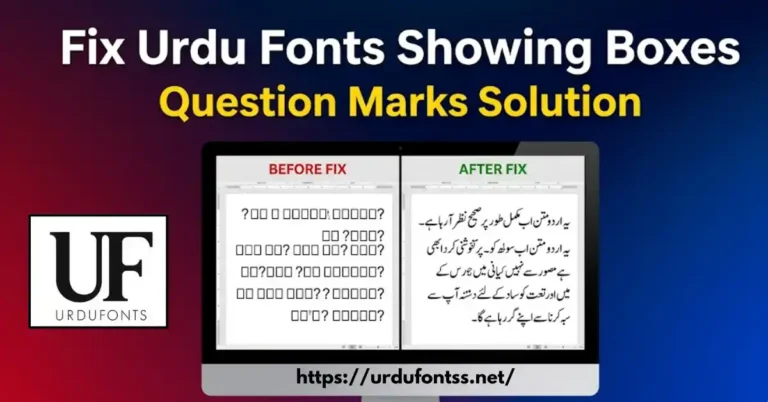
Open Pages or TextEdit, switch to the Urdu keyboard, and type a line. The text should join right-to-left with no boxes or question marks. If you see boxes instead of letters, the problem is usually the font or the encoding — the table below covers each cause.
Mac Font Tips
- Duplicate fonts: if Font Book warns about a duplicate, do not install both — keep the newer one to avoid app confusion.
- Restart apps: most Mac apps read the font list only at launch; restart any app that was open before the install.
- Fonts for other devices: if you also work on Windows or Android, the PC install guide and the Android guide cover those paths.
- Preview before you commit: set your exact text in our Live Urdu Font Previews tool to judge the font before downloading.
Common Problems & Solutions
| Problem | Solution |
|---|---|
| Font does not appear in Pages | Quit Pages completely and reopen it — Pages loads its font list at launch |
| Boxes or question marks instead of Urdu text | The file is not a Unicode font or is corrupted — download a verified Unicode TTF and reinstall; if old text still shows boxes, it was typed in a non-Unicode font and needs retyping |
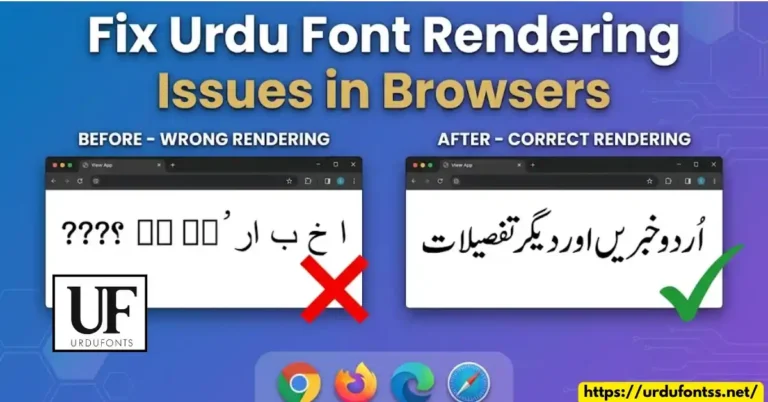
| Font renders wrongly in browsers | Check the page declares UTF-8 and names the font in its CSS; the common Urdu font problems and fixes guide covers web rendering step by step |
| Downloaded file will not install | Never install from inside the ZIP viewer — extract first, then double-click the .ttf; re-download if the file is damaged |
Final Words
On a Mac, an Urdu font is three clicks away: download a Unicode TTF, open it in Font Book, and click Install — then enable the built-in Urdu keyboard and start typing. When something renders wrong, it is almost always the font file or the app list, both fixed above. For more fonts to choose from, browse the Urdu fonts category.
Frequently Asked Questions (FAQs)
Can I download and install an Urdu font on Mac for free?
Yes. The fonts on this site are free to download, and Apple’s Font Book installs them at no cost. For commercial projects, check the font’s licence terms first.
Why does my Urdu font show boxes instead of letters?
Boxes mean the font is not Unicode or the file is damaged. Re-download a verified Unicode TTF, install it through Font Book, and restart the app.
How do I type in Urdu after installing the font?
Enable the built-in Urdu keyboard in System Settings → Keyboard → Text Input → Edit, add Urdu, and switch to it from the menu bar — no third-party keyboard is needed.
How do I add a font to Pages on Mac without Font Book?
Font Book is the supported route, but dragging a font file into ~/Library/Fonts installs it for your user, and /Library/Fonts installs it for all users — Pages picks it up after a restart either way.
Can I use Windows Urdu fonts on Mac?
If they are Unicode TTF or OTF files, yes — the format works on both. Legacy non-Unicode Windows fonts will not render correctly on a Mac.
Does the installed font work in Microsoft Word for Mac?
Yes. Fonts installed through Font Book are system-wide, so Word, Pages, Photoshop and browsers can all use them.
The font installed but Urdu text still looks wrong in one app. What now?
That is usually the app’s text rendering, not the install — check the app’s language or RTL settings, and see the common Urdu font problems and fixes guide for the per-app fixes.




29 Comments