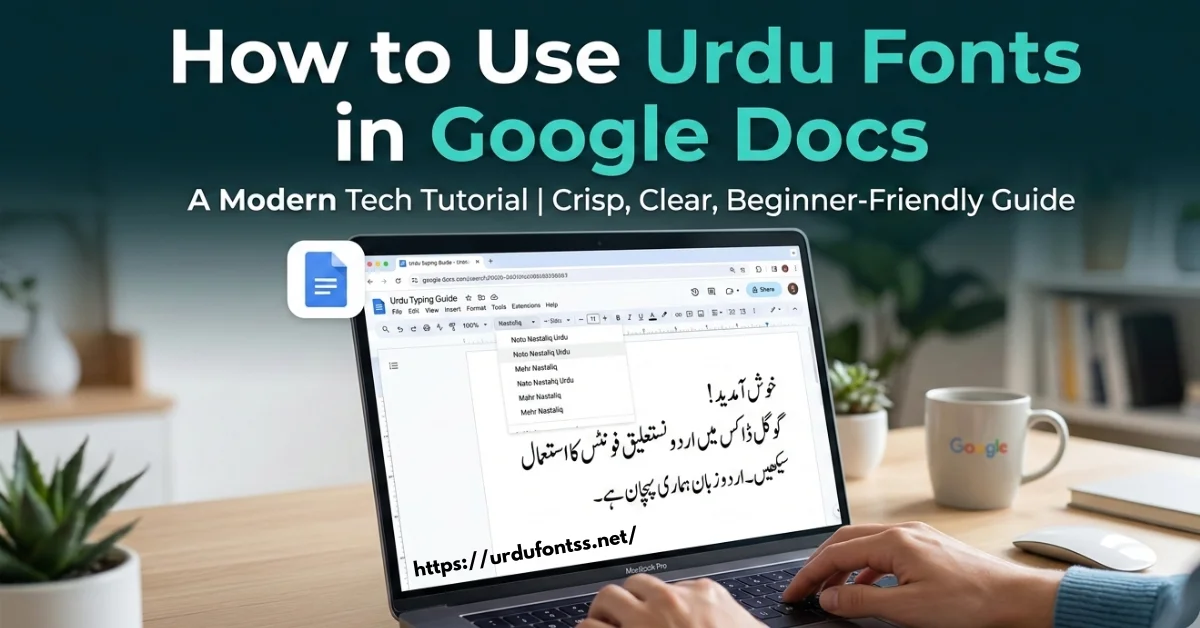
How to Use Urdu Fonts in Google Docs (Complete Beginner Guide)

Yes, you can write proper Urdu in Google Docs — including Nastaliq — but not by uploading a font file. Google Docs has no font upload option at all: it only uses fonts from the Google Fonts library. The good news is that library includes real Urdu fonts, above all Noto Nastaliq Urdu. This guide shows the complete method: add the built-in Urdu fonts, set up an Urdu keyboard, fix the right-to-left direction, and handle the few things Docs still cannot do.
Table of Contents
- First, the Honest Answer About Custom Fonts
- What You Need
- Step by Step: Urdu Fonts in Google Docs (PC / Browser)
- The Best Built-In Urdu Fonts in Google Docs
- Typing Urdu: Keyboard Setup
- Urdu Fonts in the Google Docs Mobile App
- What Google Docs Still Cannot Do
- Common Problems and Fixes
- Frequently Asked Questions (FAQs)
First, the Honest Answer About Custom Fonts
Many readers arrive here hoping to use Jameel Noori Nastaleeq inside Google Docs. That is not possible — for Jameel Noori or any other downloaded TTF. Google Docs does not accept font uploads from any user, on any plan. Anyone who needs Jameel Noori itself should use it in Microsoft Word or a design app instead; our PC installation guide covers that route. Inside Docs, the correct approach is its built-in Arabic-script fonts, and for Urdu the built-in Nastaliq option — Noto Nastaliq Urdu — looks very close to the classic newspaper style.
What You Need
- A Google account and Google Docs open in a desktop browser (Chrome works best) for the one-time font setup.
- An Urdu keyboard for typing — the Windows built-in Urdu keyboard on PC, or Gboard’s Urdu layout on a phone.
- Two minutes to add the fonts once; afterwards they stay in your account’s font list for every document.
Step by Step: Urdu Fonts in Google Docs (PC / Browser)
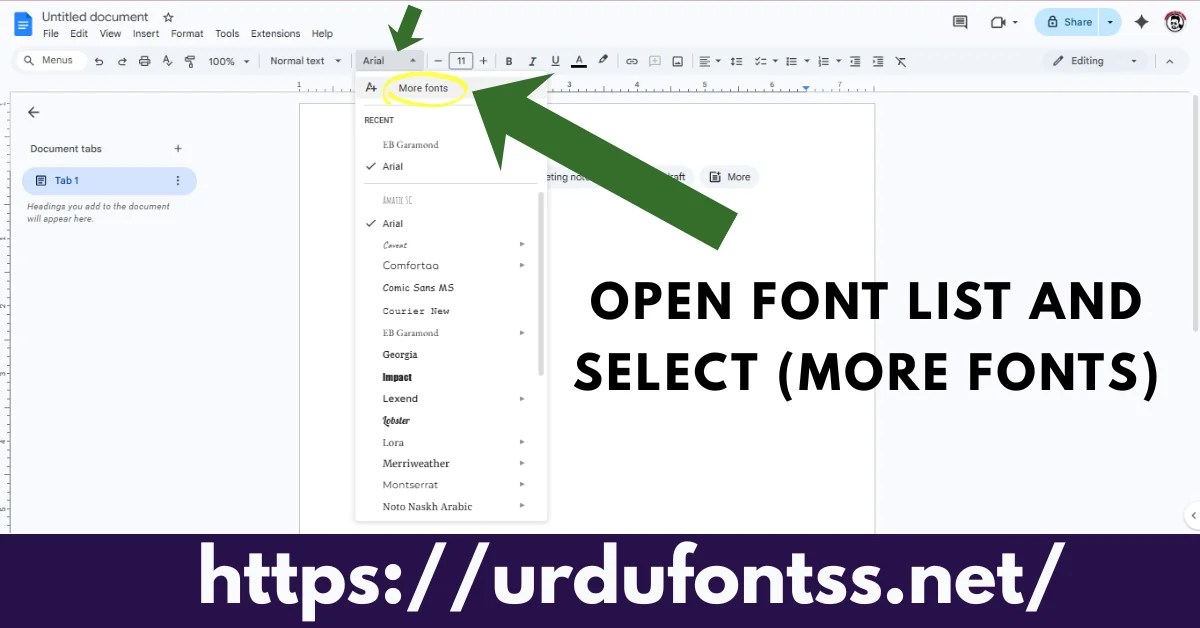
Step 1: Open a Document and the Font Menu
Open Google Docs and create or open a document. Click the font name in the toolbar (it usually says Arial) to open the font list, then click More fonts at the top of the list.
Step 2: Filter by the Arabic Script
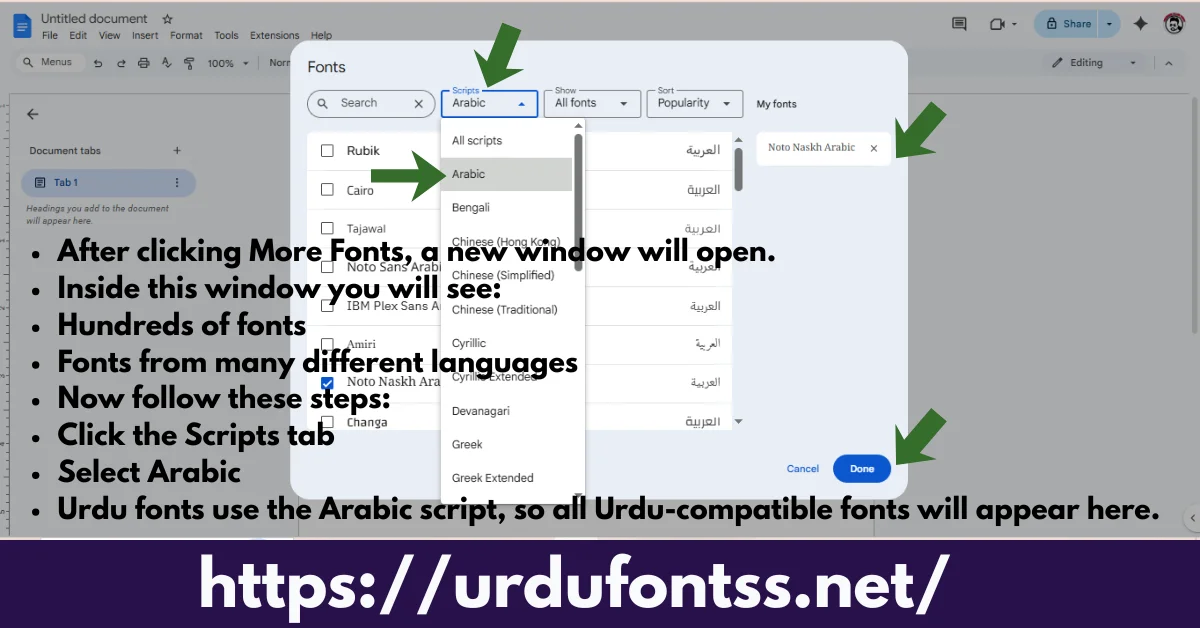
In the Fonts window, open the Scripts dropdown and choose Arabic. Urdu is written in the Arabic script, so this filter lists the fonts that can actually render Urdu — the Latin fonts disappear.
Step 3: Tick the Urdu Fonts and Click Done
Tick the fonts you want — start with Noto Nastaliq Urdu and Noto Naskh Arabic — then click Done. The ticked fonts are added to your “My fonts” and now appear in the regular font dropdown of every document.
Step 4: Apply the Font and Type
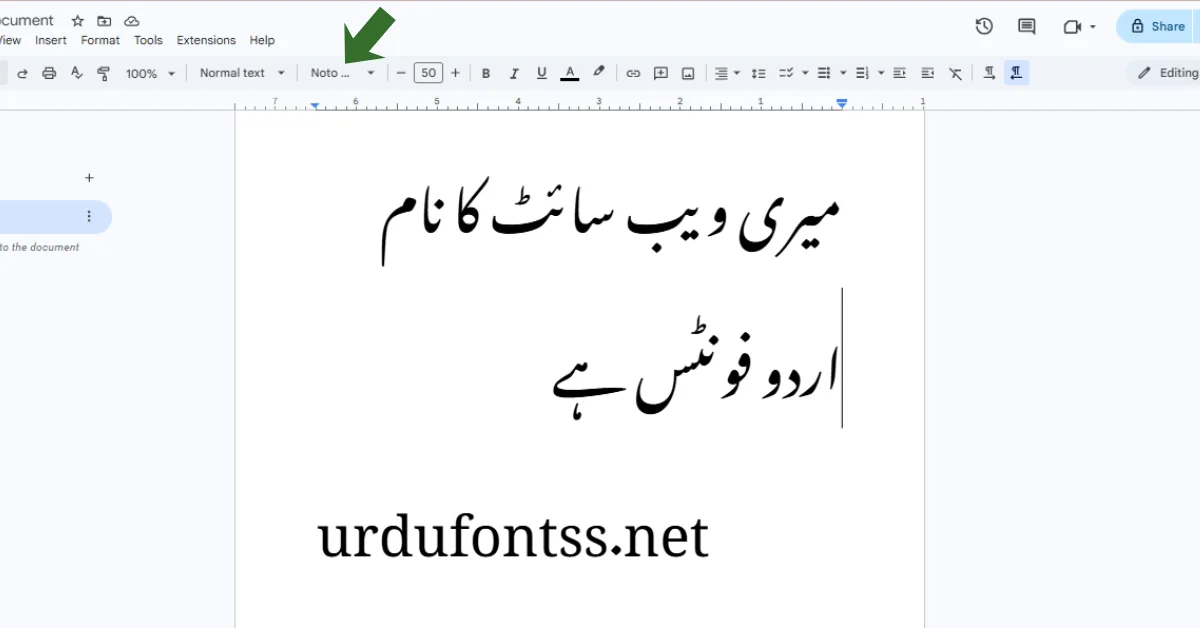
Select your text (or set the font before typing), choose Noto Nastaliq Urdu from the dropdown, switch your keyboard to Urdu, and type. The text renders in Nastaliq immediately.
Step 5: Set the Paragraph Direction to Right-to-Left
Urdu paragraphs must run right-to-left, otherwise punctuation and mixed Urdu-English lines jump to the wrong end. With your cursor in the paragraph, use Format > Paragraph direction > Right-to-left and align the text to the right. (Setting the document language under File > Language to Urdu also makes the direction button appear in the toolbar for quick switching.)
The Best Built-In Urdu Fonts in Google Docs
| Font | Style | Best for |
|---|---|---|
| Noto Nastaliq Urdu | Nastaliq | General Urdu documents — the closest to classic Urdu print |
| Gulzar | Nastaliq style | Headings and shorter text with a softer Nastaliq look |
| Noto Naskh Arabic | Naskh | Long, highly readable text; Arabic quotations |
| Amiri | Naskh (traditional) | Quranic verses and formal Arabic/Urdu text |
| Scheherazade New | Naskh | Clean reading text with full Arabic-script coverage |
| Mirza | Naskh (compact) | Notes and documents where space matters |
| Lateef | Naskh (light) | Elegant headings and titles |
All of these are added the same way — Scripts > Arabic in the More fonts window. If a name does not appear in your list, search for it in the window’s search box; availability can vary slightly by account and region.
Typing Urdu: Keyboard Setup
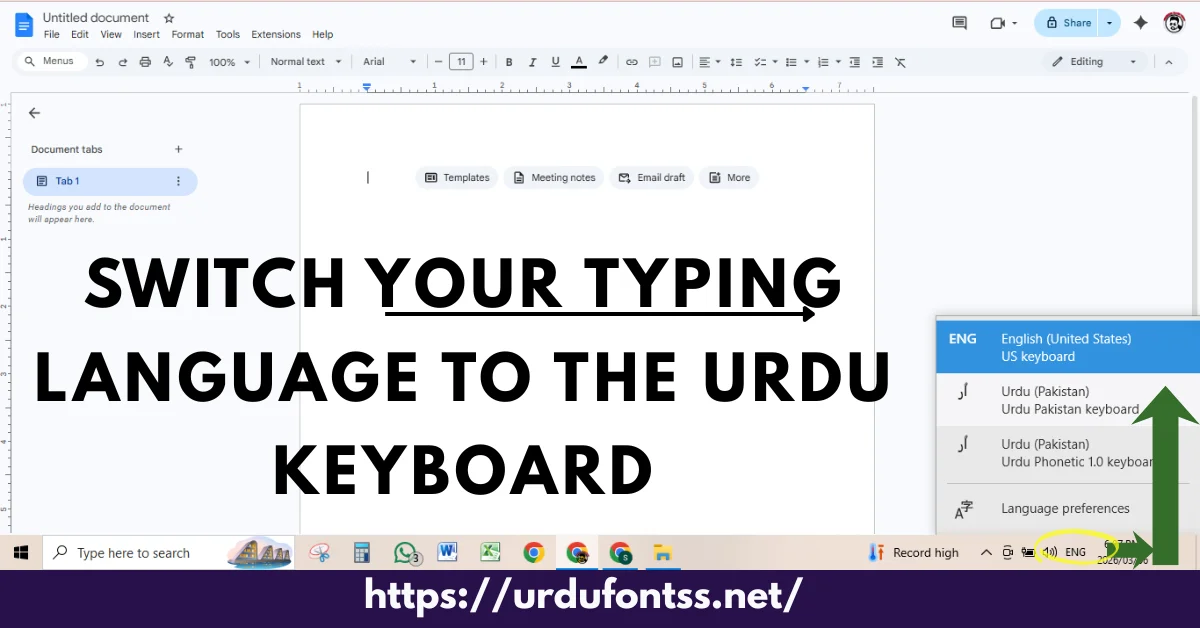
A font only changes how text looks — you still need an Urdu keyboard to produce Urdu characters. On Windows, add the built-in Urdu (Pakistan) keyboard once and switch to it with Win + Space; our Urdu keyboard guide for Windows walks through it. On a phone, add Urdu in Gboard (Gboard settings > Languages > Add keyboard > Urdu).
Urdu Fonts in the Google Docs Mobile App
The Android and iPhone Docs apps show a shorter font list than the desktop site and have no More-fonts window. Two workable routes:
- Type with Gboard: add the Urdu keyboard in Gboard, then type in the app. Text you type takes the document’s current font; if the document was set to Noto Nastaliq Urdu on desktop, the app keeps and renders that font.
- Set fonts on desktop first: do the one-time font-adding and paragraph setup in a browser (on a PC, or in your phone browser with “Desktop site” enabled in Chrome’s menu), then continue writing in the app — the formatting stays.
You do not need to uninstall or modify the app; if a guide suggests that, skip it — the two routes above cover real mobile use.
What Google Docs Still Cannot Do
- It cannot use any downloaded TTF — including Jameel Noori Nastaleeq and the fonts in our Urdu fonts category. Those are for Word, Photoshop, Canva (paid plans) and mobile design apps.
- Nastaliq line height is generous in Docs — long Nastaliq documents take more pages than the same text in Naskh. Increasing paragraph spacing slightly keeps tall glyphs from looking crowded.
- If you download the document as a Word file or PDF, the Google fonts travel as document fonts; opening the .docx on a PC without those fonts installed can substitute a different font. For guaranteed appearance, share from Docs itself or export a PDF.
Want to see how your Urdu text looks in downloadable fonts before choosing one for Word or design work? Try each style in our live Urdu font preview tool.
Common Problems and Fixes
| Problem | Fix |
|---|---|
| Urdu font not in the dropdown | Add it first: font menu > More fonts > Scripts > Arabic > tick it > Done |
| Text goes left-to-right / punctuation at the wrong end | Format > Paragraph direction > Right-to-left, and align right |
| Boxes instead of Urdu letters | The current font has no Urdu glyphs — switch to Noto Nastaliq Urdu or Noto Naskh Arabic |
| Letters do not join | Usually pasted legacy (non-Unicode) text — retype it with the Urdu keyboard |
| Font missing in the mobile app | Add and apply it on desktop once; the app keeps the document’s font |
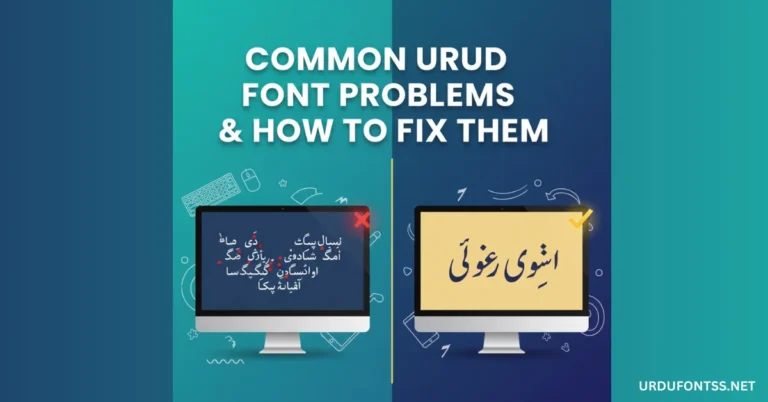
| Any other rendering issue | See our full Urdu font problems and fixes guide |
Frequently Asked Questions (FAQs)
Can I upload my own Urdu font (TTF) to Google Docs?
No. Google Docs has no font upload feature for anyone — you can only use fonts from the Google Fonts library, added through More fonts. Downloaded fonts such as Jameel Noori Nastaleeq work in Microsoft Word and design apps, not in Docs.
Which Google Docs font looks like Jameel Noori Nastaleeq?
Noto Nastaliq Urdu is the closest match — it is a true Nastaliq font, so Urdu text slopes and joins the way readers expect. Gulzar is a second Nastaliq-style option for headings. Add both via the font menu > More fonts > Scripts > Arabic.
How do I add Noto Nastaliq Urdu in Google Docs?
Click the font name in the toolbar, choose More fonts, set the Scripts filter to Arabic, tick Noto Nastaliq Urdu (and any other fonts you want), and click Done. The font then appears in your regular font dropdown for all documents.
How do I type Urdu in Google Docs?
Add an Urdu keyboard to your device — the built-in Urdu (Pakistan) keyboard on Windows (switch with Win + Space) or the Urdu layout in Gboard on a phone — then type normally with an Urdu font applied. Also set the paragraph direction to right-to-left so lines and punctuation sit correctly.
Why is my Urdu text aligned the wrong way in Docs?
The paragraph direction is still left-to-right. Put the cursor in the paragraph and choose Format > Paragraph direction > Right-to-left, then align the text right. Setting File > Language to Urdu also enables the direction button in the toolbar.
Can I use Urdu fonts in the Google Docs mobile app?
Yes, with a limit: the app has no More-fonts window, so add and apply the Urdu font on desktop (or in the phone browser’s desktop site) first; the app then keeps and renders it. For typing, add the Urdu layout in Gboard. There is no need to uninstall the app.
Why do the letters in my pasted Urdu text not join in Google Docs?
Pasted text from old software is often legacy-encoded rather than Unicode, so Docs shows the letters unjoined whatever font you pick. Retype the text with an Urdu keyboard — freshly typed Unicode Urdu joins correctly in Noto Nastaliq Urdu and Noto Naskh Arabic.





14 Comments