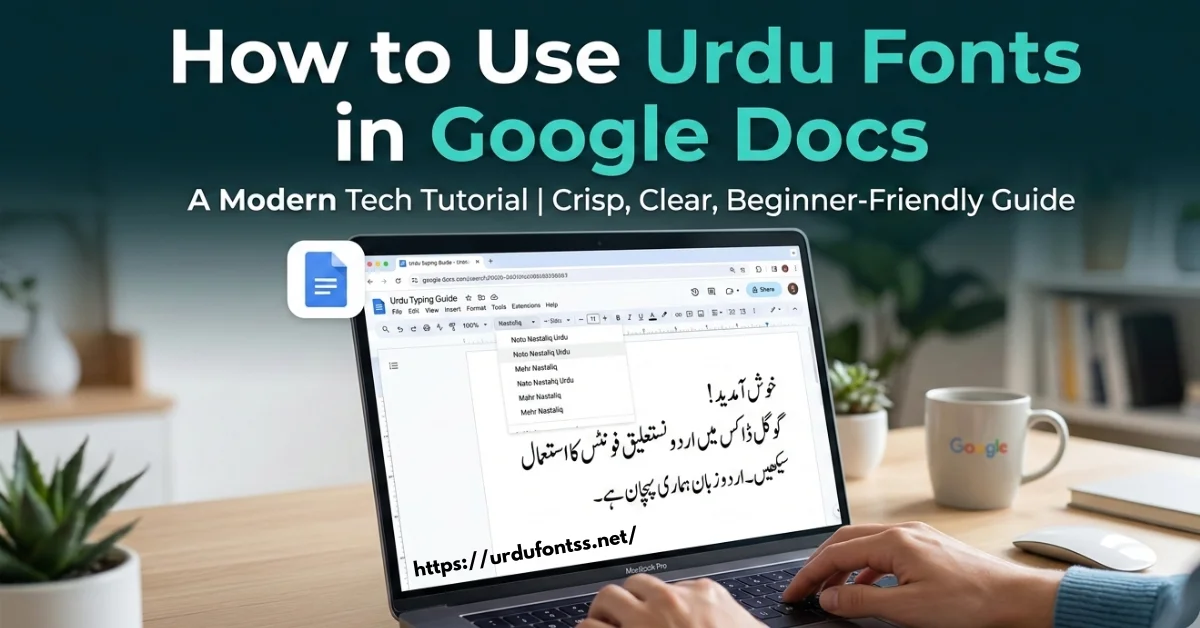
How to Use Urdu Fonts in Google Docs (Complete Beginner Guide)

Table of Content
Table of Contents
Introduction
Many users want to Use Urdu Fonts in Google Docs but do not know how to start. Google Docs is one of the most popular online document editors, and it can support Urdu writing if you set it up correctly.
In this beginner-friendly guide, you will learn exactly how to Use Urdu Fonts in Google Docs step by step. Whether you are a student, designer, blogger, or teacher, this tutorial will help you write Urdu documents easily.
After reading this guide, you will know:
- How to install Urdu TTF fonts
- How to enable Urdu typing
- How to Use Urdu Fonts in Google Docs on PC and mobile
- Solutions for common Urdu typing problems
If you want to Use Urdu Fonts in Google Docs smoothly, follow the steps below carefully.
What Are Urdu Fonts?
Urdu fonts are special font files that display Urdu text correctly. Most Urdu fonts use the Nastaliq writing style, which is the traditional Urdu calligraphy style.
Popular Urdu fonts include:
- Jameel Noori Nastaleeq
- Noto Nastaliq Urdu
- Mehr Nastaliq
- Alvi Nastaleeq
These fonts allow users to create beautiful Urdu documents. Many users download Urdu fonts in TTF format, which can be installed on computers to Use Urdu Fonts.
Why Use Urdu Fonts in Google Docs?
There are many reasons people want to Use Urdu Fonts in Google Docs.
1. Online Document Editing
Google Docs works in the browser. You do not need to install heavy software.
2. Easy Collaboration
Multiple people can edit Urdu documents together.
3. Cloud Storage
Documents are saved automatically in Google Drive.
4. Accessibility
You can Use Urdu Fonts in Google Docs from:
- Laptop
- Desktop computer
- Tablet
- Mobile phone
5. Free to Use
Google Docs is completely free.
How Google Docs Supports Urdu Fonts
Google Docs does not directly upload external fonts easily, but you can still Use Urdu Fonts in Google Docs through these methods:
- Using built-in Urdu-supported fonts
- Using Google Fonts like Noto Nastaliq
- Using Urdu keyboard typing
Understanding these methods helps you properly Use Urdu Fonts in Google Docs.
Step-by-Step Guide to Use Urdu Fonts in Google Docs
Many users think they can upload or install external fonts in Google Docs, but this is not possible. You cannot directly upload Urdu TTF fonts from outside and then Use Urdu Fonts in Google Docs.
Google Docs only allows fonts that are already available inside its font library. For Urdu typing, the most popular and widely used font available in Google Docs is Noto Nastaliq Urdu.
However, you can still Use Urdu Fonts in Google Docs easily by enabling the Urdu keyboard and selecting Urdu-supported fonts.
Follow the steps below.
Step 1: Install Urdu Language and Urdu Keyboard
Before you Use Urdu Fonts in Google Docs, you must first enable the Urdu language and Urdu keyboard on your device.
You can add the Urdu keyboard on:
- Laptop
- Desktop PC
- Mobile phone
- Tablet
Once the Urdu keyboard is installed, you will be able to type Urdu text anywhere including Google Docs. If you do not know how to install and activate the Urdu keyboard, you can read this complete guide: https://jameelnoori.com/how-to-install-urdu-keyboard/ This tutorial explains step-by-step how to download, install, and activate the Urdu keyboard on your device.
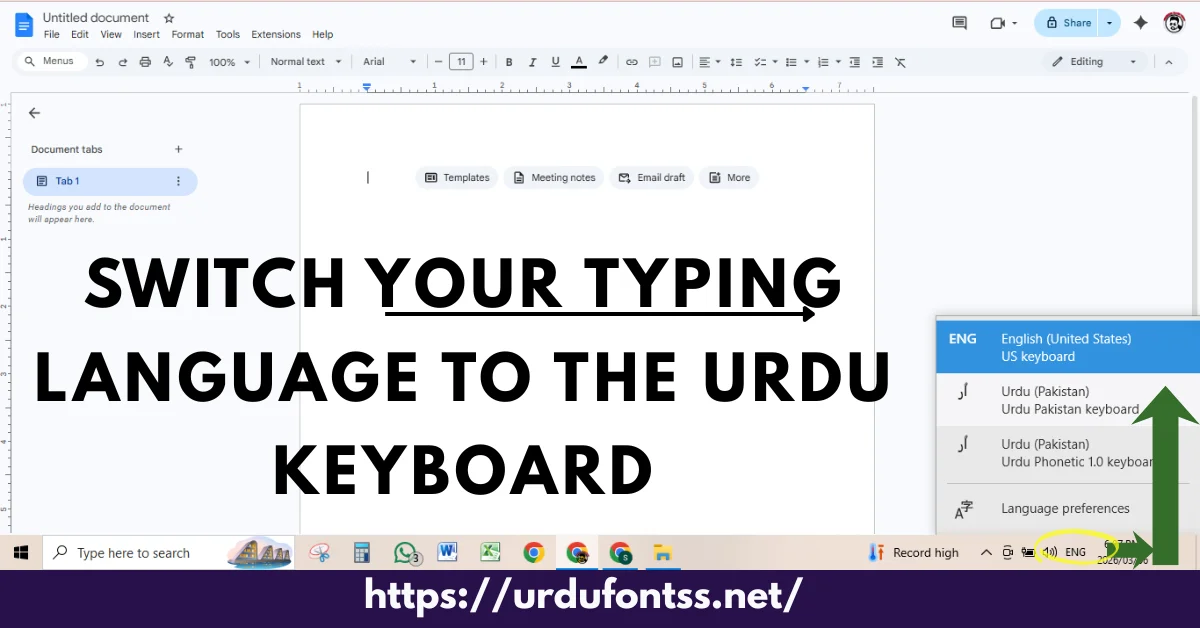
Step 2: Open Google Docs
After installing the Urdu keyboard:
- Open Google Docs
- Create a new document
Now switch your typing language to the Urdu keyboard you installed earlier. This step allows you to start typing Urdu so you can Use Urdu Fonts in Google Docs properly.
Step 3: Open the Font List
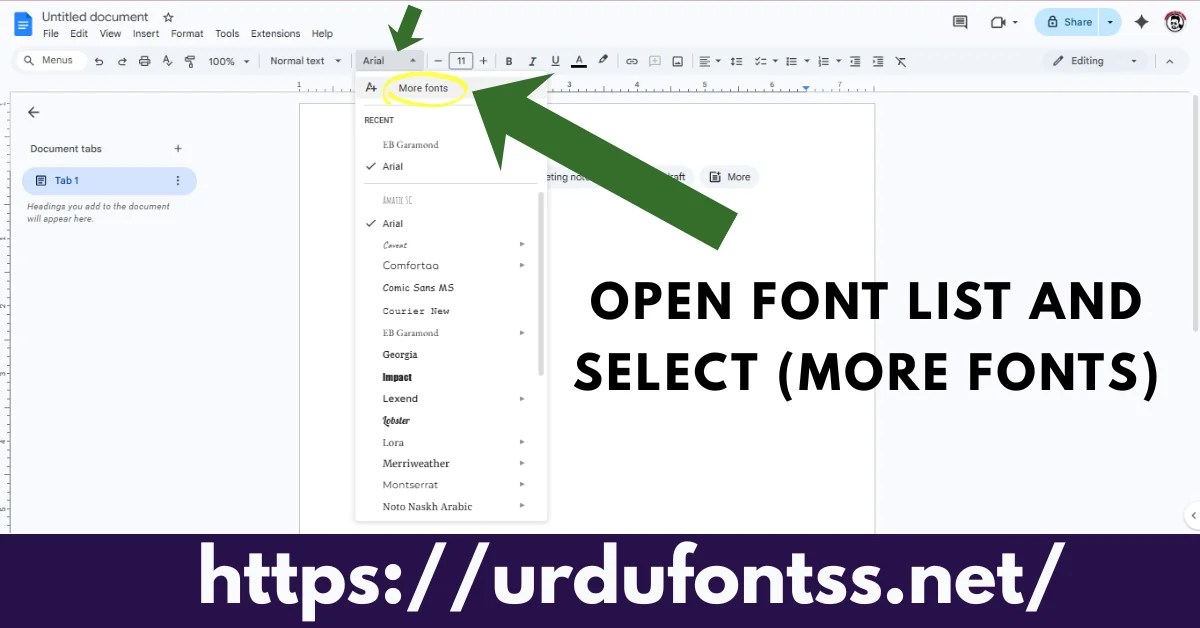
At the top of Google Docs you will see the Font option.
- Click on the Font dropdown
- A list of fonts will appear
At the top of this list, you will see an option called:
More Fonts
Click on More Fonts.
Step 4: Select Urdu / Arabic Script Fonts
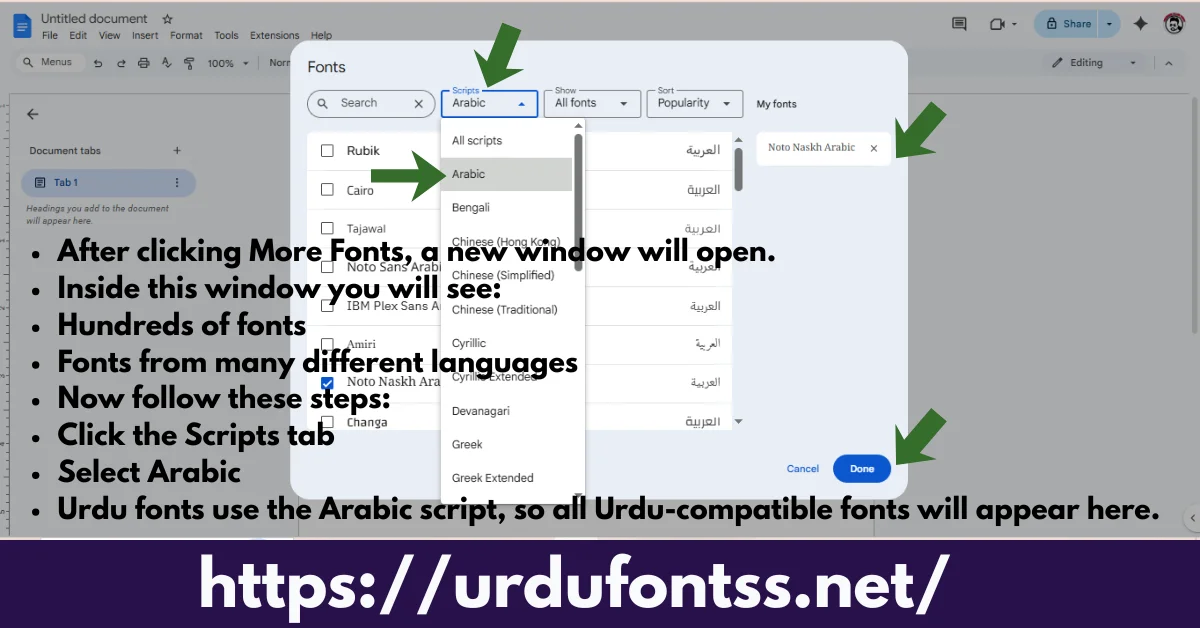
After clicking More Fonts, a new window will open.
Inside this window you will see:
- Hundreds of fonts
- Fonts from many different languages
Now follow these steps:
- Click the Scripts tab
- Select Arabic
Urdu fonts use the Arabic script, so all Urdu-compatible fonts will appear here.
Now you will see many Urdu-supported fonts including:
- Noto Nastaliq Urdu
- Noto Naskh Arabic
- Other Arabic script fonts
Step 5: Add the Fonts to Your Font List
Now select the fonts you want to use.
- Click on the fonts
- They will move to the selected fonts list
- Click Done
Now these fonts will be added to your Google Docs font menu. This allows you to easily Use Urdu Fonts in Google Docs whenever you write Urdu text.
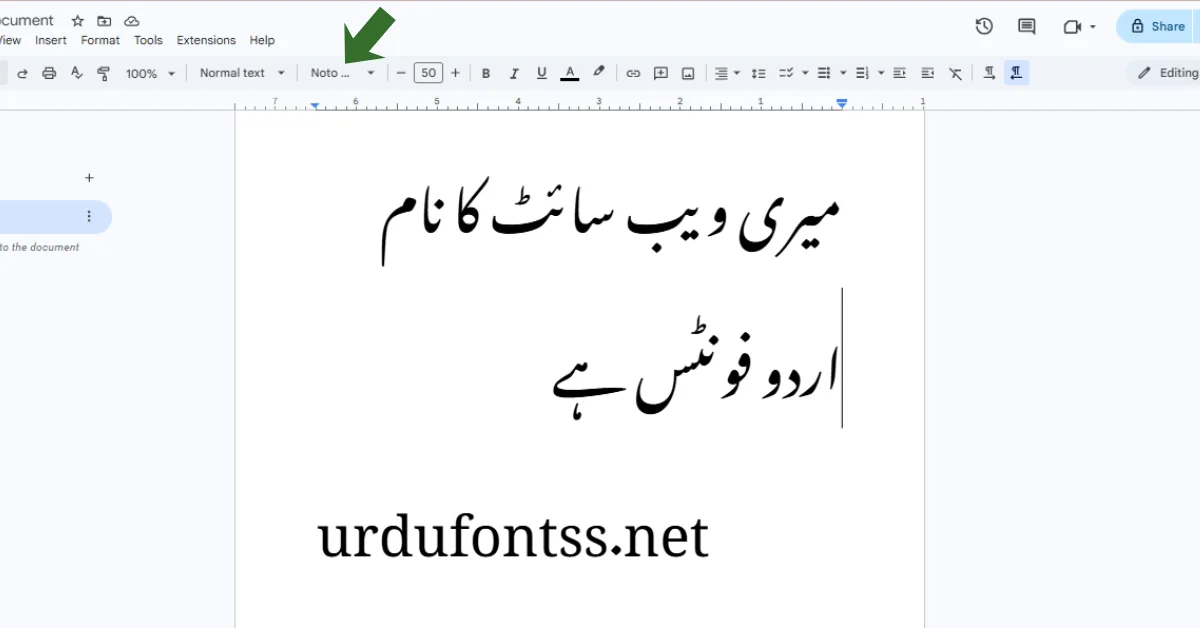
Step 6: Start Typing in Urdu
Now everything is ready.
- Choose the Urdu font you added
- Select your Urdu keyboard
- Start typing
You can now easily Use Urdu Fonts in Google Docs for:
- Urdu articles
- essays
- assignments
- poetry
- notes
- blog content
Most people prefer Noto Nastaliq Urdu because it gives the traditional Urdu writing style.
Step 7: Change Text Direction
Urdu is written right to left.
To correctly Use Urdu Fonts in Google Docs:
- Click Format
- Select Paragraph Direction
- Choose Right to Left
This ensures proper Urdu formatting.
How to Use Urdu Fonts in Google Docs on Mobile
Many users also want to Use Urdu Fonts in Google Docs on their mobile phones. However, using Urdu fonts on mobile is a little more tricky compared to desktop or laptop.
The Google Docs mobile app has very limited fonts, and most of them are English fonts only. Because of this limitation, adding Urdu fonts like Noto Nastaliq Urdu directly inside the mobile app is not always possible. But there is a simple workaround you can follow.
Step 1: Install Required Apps
First, you need to install two applications from the Google Play Store.
- Google Docs App
- Urdu Keyboard App
The Urdu keyboard allows you to type Urdu text on your phone. Once both apps are installed, you are ready to Use Urdu Fonts in Google Docs on mobile.
Step 2: Open Google Docs App
Now follow these steps:
- Open the Google Docs app
- Create a new document
- Switch your keyboard to the Urdu keyboard
Now type whatever Urdu text you want. After typing the content:
- Give your file a name
- Save the document
This file will be saved in your Google Drive account.
Step 3: Open Mobile Browser in Desktop Mode
Now comes the important step. Since the Google Docs mobile app has limited fonts, we need to open the desktop version of Google Docs.
Follow these steps:
- Open your mobile browser (Chrome recommended)
- Enable Desktop Site / Desktop View
- Go to Google Docs website
- Sign in to your Google account
Now you will see all your saved documents.
Step 4: Uninstall Google Docs App (Important)
Before opening the document in the browser, you must temporarily uninstall the Google Docs mobile app. If the app is installed, your phone may automatically open the document inside the app instead of the browser. Once the app is uninstalled, the file will open directly in the browser desktop version.
Step 5: Change the Urdu Font
Now open your saved document.
Use the same method explained earlier for desktop:
- Click the Font menu
- Click More Fonts
- Select Scripts
- Choose Arabic
You will now see fonts like:
- Noto Nastaliq Urdu
- Other Arabic script fonts
Select the fonts you want and click Done. Now you can Use Urdu Fonts in Google Docs on mobile just like you do on desktop.
Tip for Mobile Users
For the best experience when you Use Urdu Fonts in Google Docs, it is recommended to use a laptop or desktop because:
- More fonts are available
- Interface is easier to use
- Urdu formatting works better
However, with the method above, you can still Use Urdu Fonts in Google Docs on your smartphone when needed.
Best Urdu Fonts for Google Docs
If you want the best experience when you Use Urdu Fonts in Google Docs, try these fonts:
Mirza
Noto Nastaliq Urdu
Gulzar
Common Problems and Solutions
Problem 1: Urdu Text Not Displaying Correctly
Solution
Change paragraph direction to Right-to-Left.
Problem 2: Urdu Font Not Showing
Google Docs may not support some fonts.
Use Noto Nastaliq Urdu instead when you Use Urdu Fonts in Google Docs.
Problem 3: Urdu Keyboard Not Working
Make sure Urdu language is installed in your system.
Problem 4: Text Appears Broken
Use Unicode Urdu fonts when you Use Urdu Fonts in Google Docs.
Expert Tips
If you want the best results when you Use Urdu Fonts in Google Docs, follow these expert tips:
Tip 1
Always use Unicode Urdu fonts.
Tip 2
Enable Right-to-Left text direction.
Tip 3
Use Noto Nastaliq Urdu for best compatibility.
Other Urdu Fonts You May Like
FAQs
Can I use Urdu fonts in Google Docs?
Yes, you can Use Urdu Fonts in Google Docs by enabling Urdu typing and using supported fonts.
How do I type Urdu in Google Docs?
Install an Urdu keyboard and switch your typing language.
Which Urdu font works best in Google Docs?
Noto Nastaliq Urdu works best.
How do I add Urdu fonts to Google Docs?
There is no way to add Custom fonts from other sources.
Can I use Urdu fonts in Google Docs mobile?
Yes, you can Use Urdu Fonts in Google Docs using Urdu keyboard apps.
Why is my Urdu text not aligned properly?
Set paragraph direction to Right-to-Left.
Is Google Docs good for Urdu writing?
Yes, many users Use Urdu Fonts in Google Docs for writing and collaboration.
Can I write Urdu essays in Google Docs?
Yes, students commonly Use Urdu Fonts in Google Docs for assignments.
Can i Add other URdu Fonts in Google Docs Like Jameel Noori ?
No , you cannot add other fonts in google docs.
Conclusion
Learning how to Use Urdu Fonts in Google Docs is very helpful for students, writers, and designers. Once you install Urdu fonts and enable the Urdu keyboard, you can easily write Urdu documents online.
Google Docs makes Urdu writing simple because it allows cloud storage, collaboration, and access from any device. If you want the best Urdu typing experience, always download high-quality fonts from trusted sources like:
With the steps explained in this guide, anyone can successfully Use Urdu Fonts in Google Docs without technical knowledge.





10 Comments