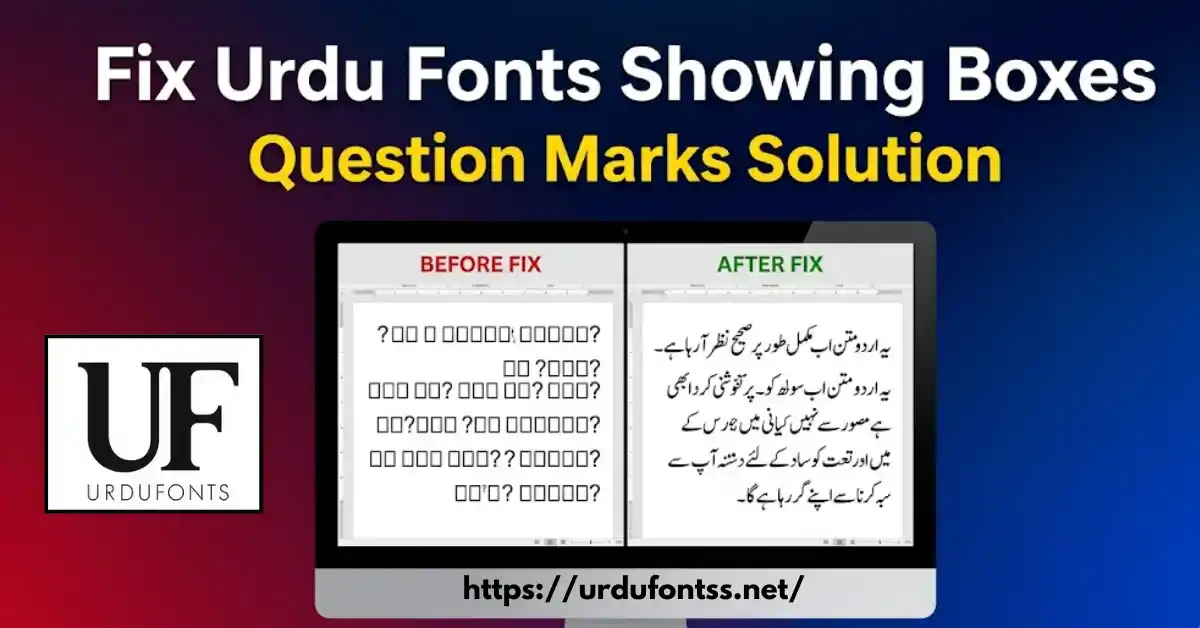
How to Fix Urdu Fonts Showing Boxes or Question Mark?

Table of Content
Table of Contents
Introduction
Kya aap kabhi urdu fonts showing boxes or question marks ka problem face kar chuke hain? Agar aap Urdu mein text type karte hain lekin screen par boxes ya question marks (?) dikhte hain, to yeh guide aap ke liye hai.
Urdu fonts showing boxes or question marks ek common problem hai jo Windows, MS Word, Photoshop, Canva, aur web browsers mein hoti hai. Is problem ki waja se aapka Urdu text read nahi hota aur aap ka kaam ruk jata hai.
Is article mein aap seekhoge:
- Urdu fonts showing boxes or question marks kyun hota hai
- Windows mein Urdu fonts kaise fix karein
- MS Word, Photoshop, Canva mein solution
- Web browsers aur mobile par fix
- Best Unicode Urdu fonts to avoid this problem
Agar aap aur Urdu fonts dekhna chahte hain to https://urdufontss.net/category/urdu-fonts/ visit karein.
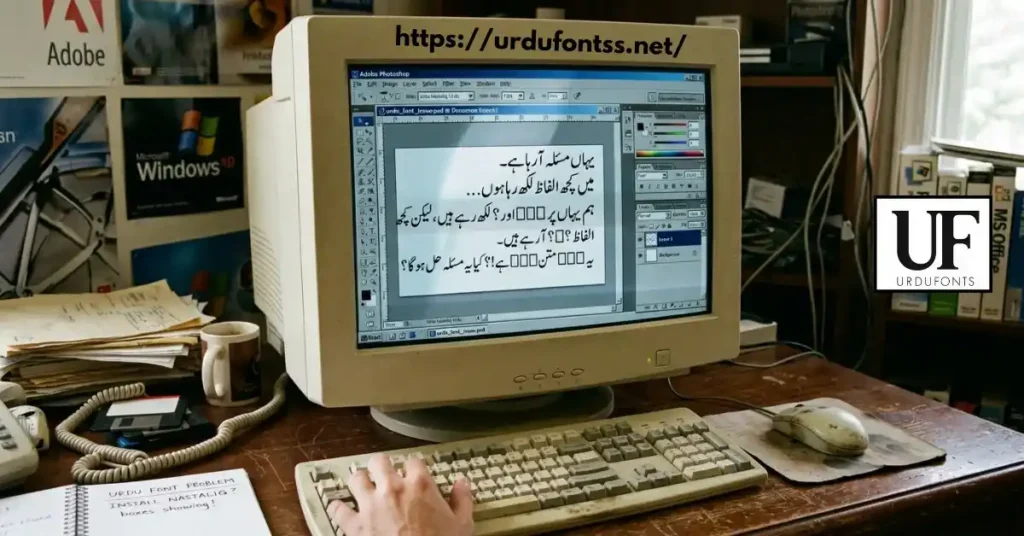
Why Do Urdu Fonts Show Boxes or Question Marks?
Urdu fonts showing boxes or question marks ke kuch main reasons hain:
| Reason | Explanation |
|---|---|
| Missing Fonts | Woh font aapke system mein install nahi hai |
| Non-Unicode Fonts | Purane fonts Unicode support nahi karte |
| Missing Language Pack | Windows mein Urdu language pack install nahi |
| Wrong Encoding | Software mein correct encoding select nahi |
| Corrupted Font Files | Font file damage ho gayi hai |
Jab aapka system kisi character ko recognize nahi karta, to woh urdu fonts showing boxes or question marks ka issue create hota hai.
https://urdufontss.net/common-urdu-font-problems/ par aur common problems ke solutions hain.
How to Fix Urdu Fonts in Windows
Agar aap Windows mein urdu fonts showing boxes or question marks dekh rahe hain, to yeh steps follow karein:
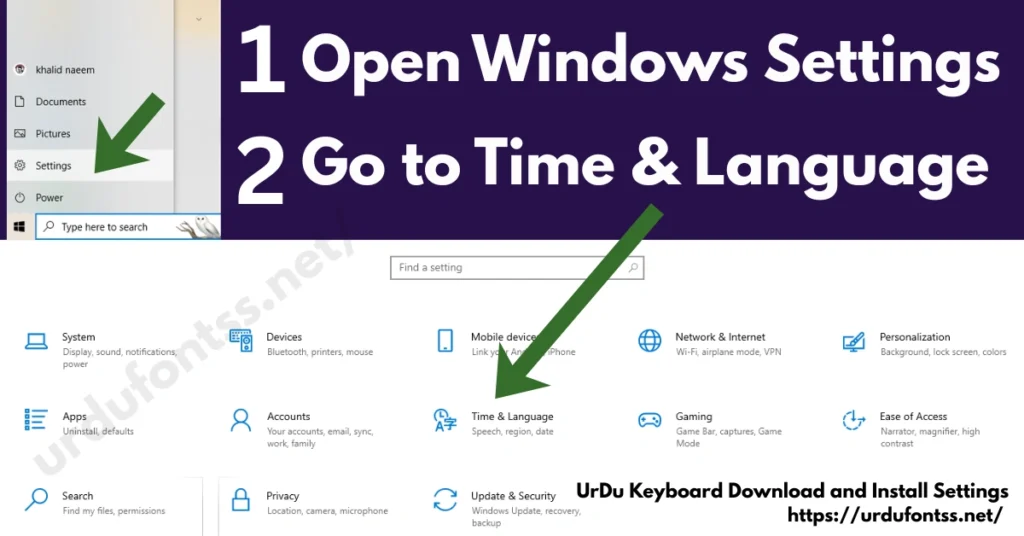
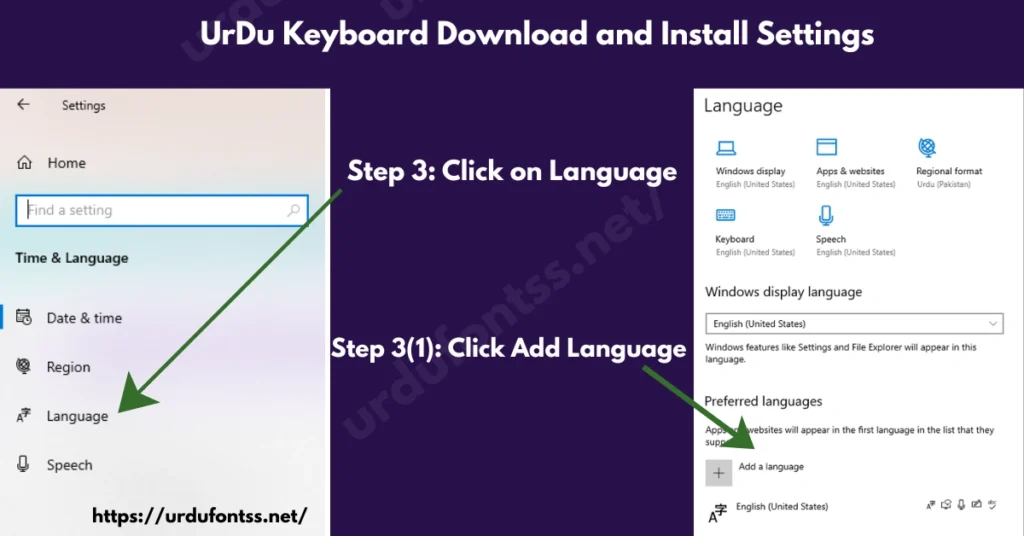
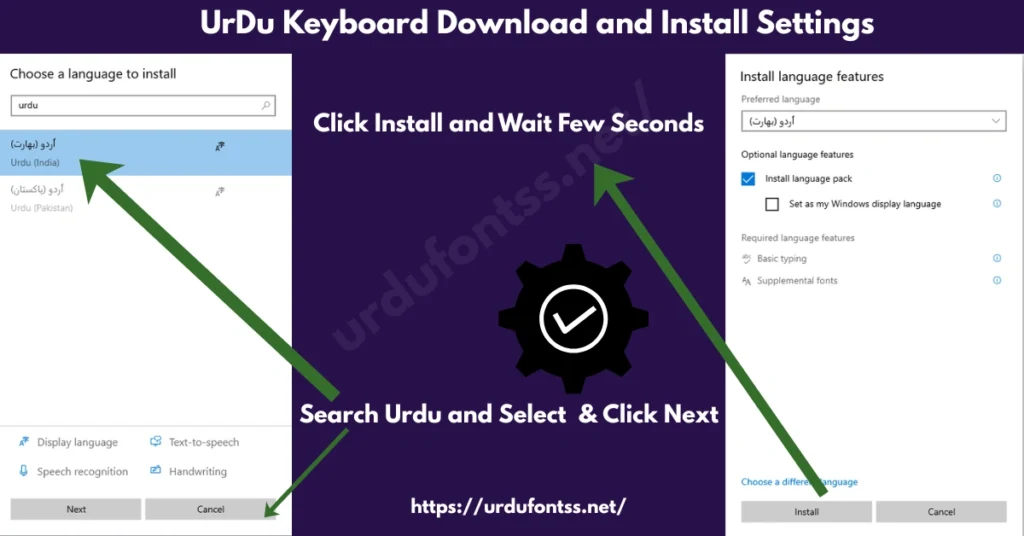
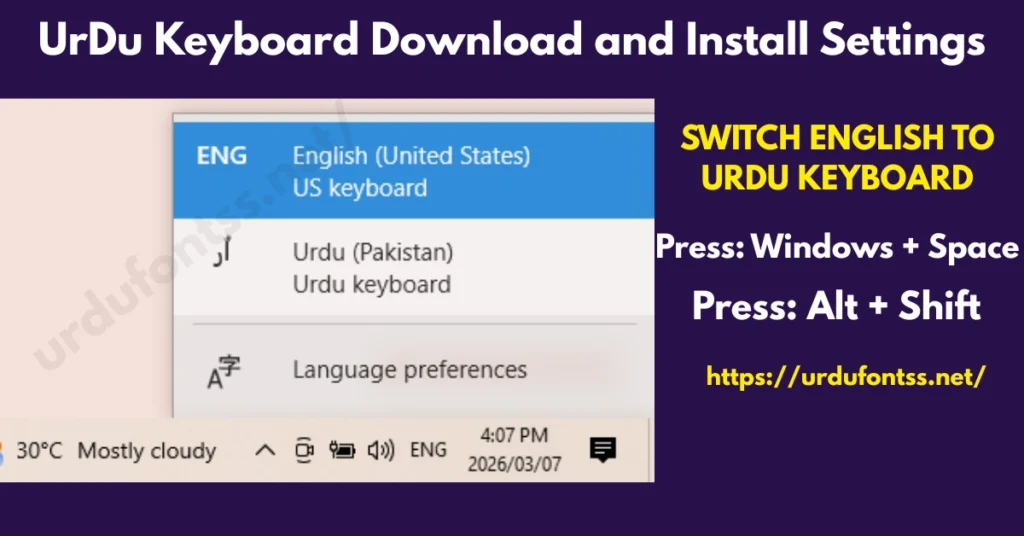
Step 1: Install Urdu Language Pack
- Settings open karein
- Time & Language > Language pe click karein
- Add a language button pe click karein
- Urdu search karein aur select karein
- Next > Install karein
Step 2: Install Unicode Urdu Fonts
Sirf Unicode fonts use karein. Non-Unicode fonts boxes show karte hain.
| Font Name | Type | Download |
|---|---|---|
| Jameel Noori Nastaleeq | Unicode | https://urdufontss.net/jameel-noori-nastaleeq-urdu-font-download/ |
| Urdu Naskh Unicode | Unicode | https://urdufontss.net/urdu-naskh-unicode-regular-free-urdu-font-download/ |
| Shamsheer Unicode | Unicode | https://urdufontss.net/shamsheer-unicode-shamsheer-unicode-font/ |
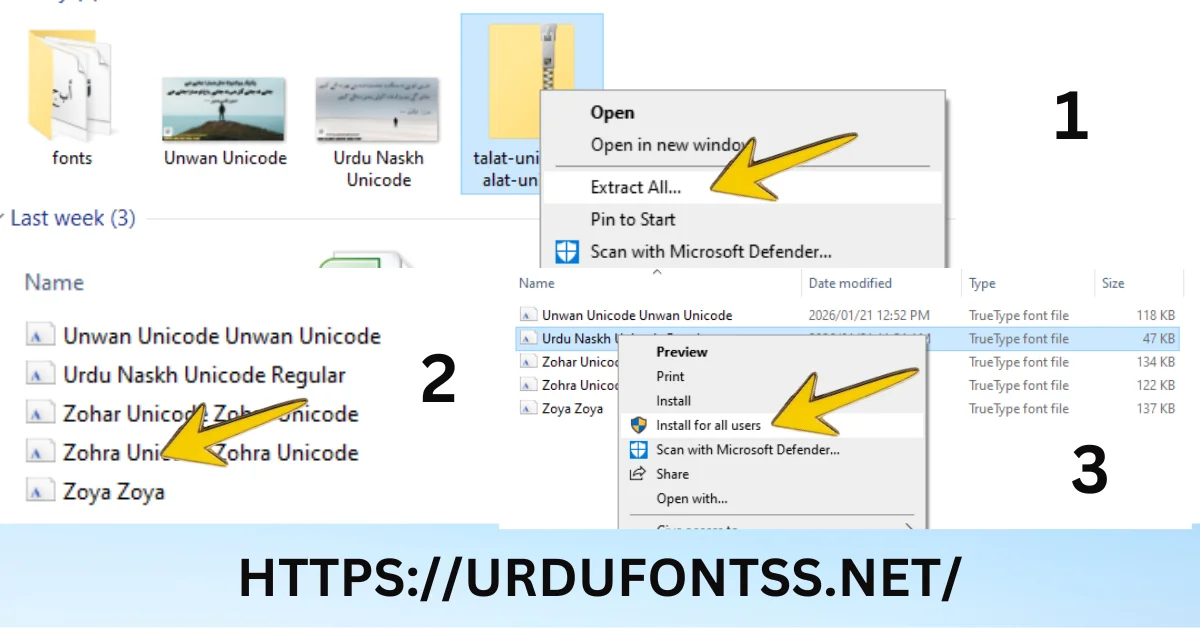
Step 3: Install Font Correctly
- TTF file download karein
- File pe right-click karein
- Install option select karein
- Computer restart karein
Yeh steps follow karne se urdu fonts showing boxes or question marks ka problem Windows mein fix ho jayega.
https://urdufontss.net/download-and-install-urdu-keyboard-in-pc/ mein detail guide hai.
How to Fix Urdu Fonts in MS Word
MS Word mein urdu fonts showing boxes or question marks ka solution:
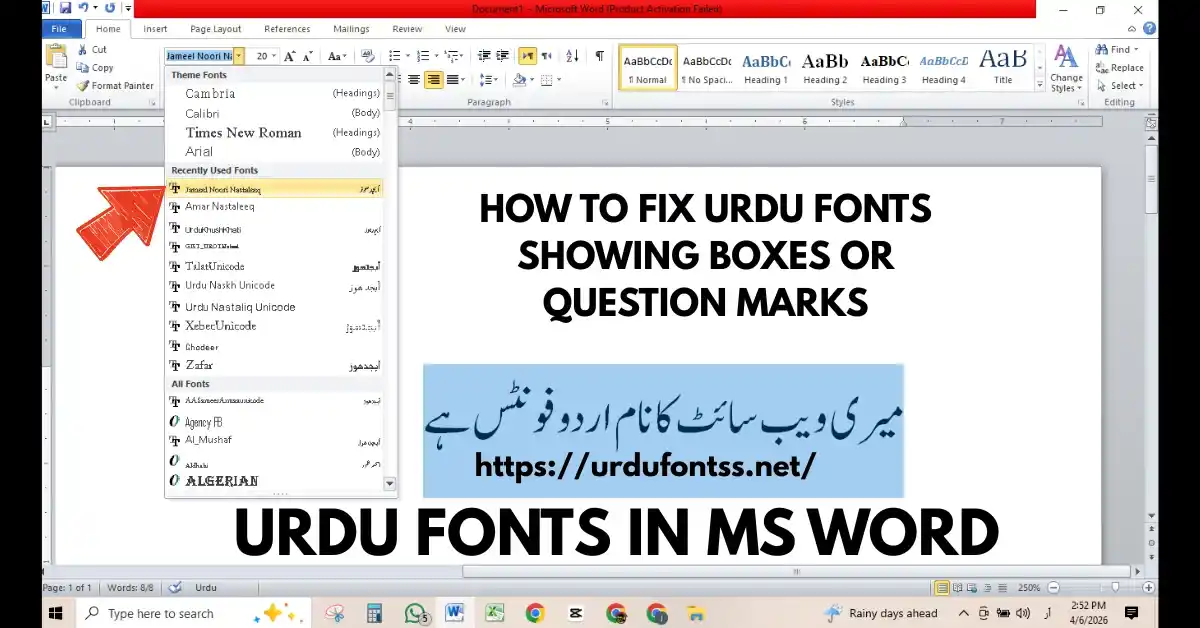
Method 1: Select Unicode Font
- MS Word open karein
- Text select karein
- Font dropdown mein Jameel Noori Nastaleeq ya Urdu Naskh Unicode select karein
- Text sahi dikhne lagega
Method 2: Change Language Settings
- File > Options pe click karein
- Language tab select karein
- Add additional editing languages mein Urdu add karein
- Set as Default karein
- Word restart karein
Method 3: Paste as Plain Text
Agar copy-paste kar rahe hain to:
- Text copy karein
- Word mein Ctrl + Shift + V se paste karein
- Phir Unicode font apply karein
Yeh solutions urdu fonts showing boxes or question marks ko MS Word mein fix kar dein ge.
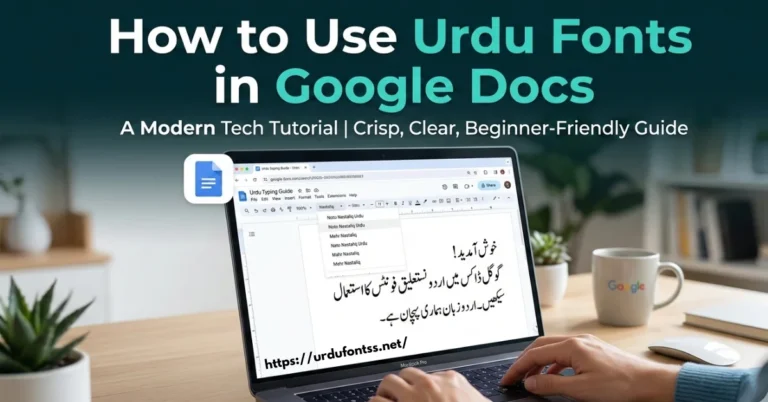
https://urdufontss.net/use-urdu-fonts-in-google-docs/ mein Google Docs ke liye guide hai.
How to Fix Urdu Fonts in Adobe Photoshop
Photoshop mein urdu fonts showing boxes or question marks ka solution:
Step 1: Enable Middle Eastern Features
- Photoshop open karein
- Edit > Preferences > Type pe click karein
- Show Asian Text Options select karein
- Middle Eastern Features enable karein
- Photoshop restart karein
Step 2: Select Unicode Font
- Text tool (T) select karein
- Character panel mein font select karein
- Sirf Unicode fonts use karein jaise Urdu Naskh Unicode
- Text type karein
Step 3: Check Text Direction
- Paragraph panel mein text direction check karein
- Right to Left direction select karein
- Text sahi align hoga
Yeh steps urdu fonts showing boxes or question marks ko Photoshop mein fix kar dein ge.
How to Fix Urdu Fonts in Canva
Canva mein urdu fonts showing boxes or question marks ka solution:
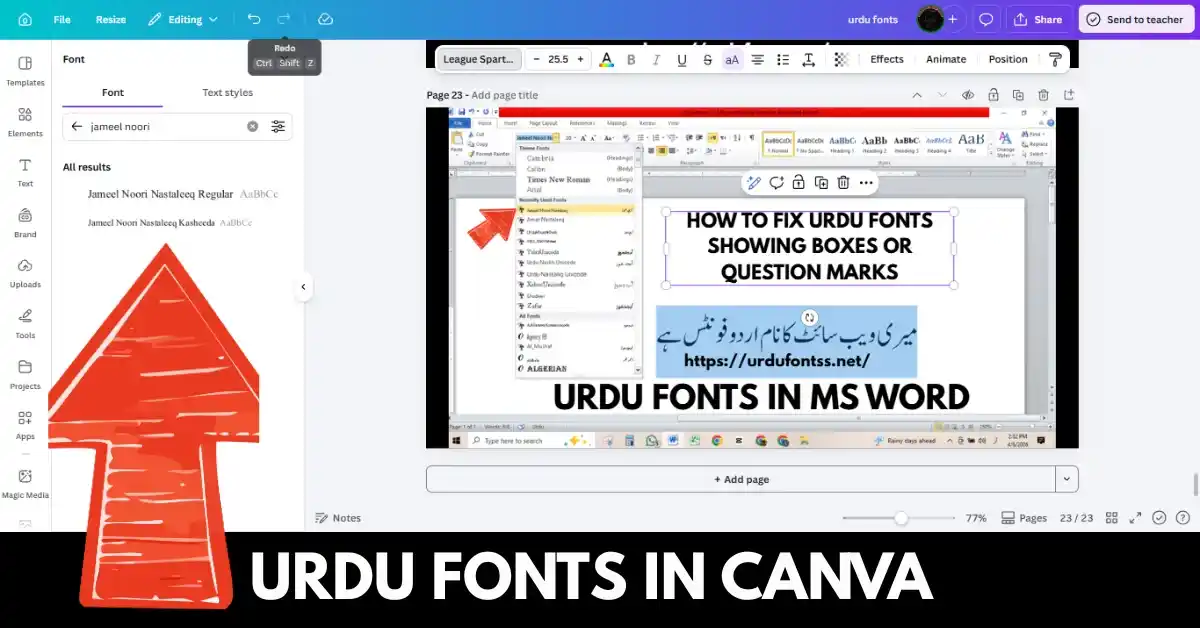
Method 1: Upload Unicode Font
- Canva open karein
- Brand Kit pe click karein
- Upload a font button pe click karein
- Unicode Urdu font (TTF file) upload karein
- Font select karein aur text type karein
Method 2: Use Available Unicode Fonts
Canva mein kuch Unicode Urdu fonts available hain. Search karein:
- Noto Nastaliq Urdu
- Noto Naskh Arabic
Method 3: Copy-Paste Method
- MS Word ya Google Docs mein Unicode font mein text type karein
- Text copy karein
- Canva mein paste karein
Agar phir bhi urdu fonts showing boxes or question marks ka problem hai to https://urdufontss.net/how-to-add-urdu-fonts-in-canva/ yeh guide dekhain.
How to Fix Urdu Fonts in Web Browsers
Browsers mein urdu fonts showing boxes or question marks ka solution:
Solution 1: Install Urdu Fonts on System
- Unicode Urdu fonts download karein
- System mein install karein
- Browser restart karein
Solution 2: Change Browser Encoding
Google Chrome:
- Settings > Advanced pe click karein
- Languages > Urdu add karein
- Display Google Chrome in this language select karein
Mozilla Firefox:
- Options > General pe click karein
- Language and Appearance > Urdu add karein
Solution 3: CSS Font-Family Fix
Agar aap website owner hain to CSS mein yeh add karein:
css
body {
    font-family: 'Jameel Noori Nastaleeq', 'Urdu Naskh Unicode', 'Noto Nastaliq Urdu', sans-serif;
}
Yeh fixes urdu fonts showing boxes or question marks ko browsers mein solve kar dein ge.
https://urdufontss.net/use-urdu-fonts-in-google-docs/ mein web-based solutions hain.
How to Fix Urdu Fonts on Mobile (Android/iOS)
Mobile par urdu fonts showing boxes or question marks ka solution:
Android
- Settings > Language & Input pe jayein
- Languages > Add a language > Urdu select karein
- Urdu keyboard enable karein
- Unicode font wala app use karein
iPhone/iPad
- Settings > General > Language & Region pe jayein
- Add Language > Urdu select karein
- Urdu keyboard enable karein
- iFont jaise app se Unicode fonts install karein
https://urdufontss.net/install-urdu-fonts-in-capcut/ mein mobile installation guide hai.
Best Unicode Urdu Fonts to Avoid This Problem
Urdu fonts showing boxes or question marks se bachne ke liye sirf Unicode fonts use karein:
| # | Font Name | Link |
|---|---|---|
| 1 | Jameel Noori Nastaleeq | https://urdufontss.net/jameel-noori-nastaleeq-urdu-font-download/ |
| 2 | Urdu Naskh Unicode | https://urdufontss.net/urdu-naskh-unicode-regular-free-urdu-font-download/ |
| 3 | Shamsheer Unicode | https://urdufontss.net/shamsheer-unicode-shamsheer-unicode-font/ |
| 4 | SF Koonj Regular | https://urdufontss.net/sf-koonj-regular-font-free-download/ |
| 5 | Zohra Unicode | https://urdufontss.net/zohra-unicode-free-urdu-font/ |
| 6 | Ul Noreen Bold | https://urdufontss.net/ul-noreen-bold-regular-free-urdu-font-download/ |
| 7 | Tehreer Regular | https://urdufontss.net/tehreer-regular-font-download/ |
| 8 | Ul Amjad Regular | https://urdufontss.net/ul-amjad-regular-free-urdu-font-download/ |
Yeh sab Unicode fonts hain. Inhe use karne se urdu fonts showing boxes or question marks ka problem nahi aayega.
Aur bhi fonts ke liye https://urdufontss.net/category/all-fonts/ visit karein.
Common Mistakes to Avoid
| Mistake | Why It Causes Problem |
|---|---|
| Using Non-Unicode Fonts | Purane fonts boxes show karte hain |
| Missing Language Pack | Windows Urdu characters recognize nahi karta |
| Wrong Font Selection | Kuch fonts Urdu support nahi karte |
| Corrupted Font Files | Damage file sahi kaam nahi karti |
| No Urdu Keyboard | Type karne ka sahi tareeqa nahi |
In mistakes se bachne ke liye hamesha Unicode fonts use karein. Is tarah urdu fonts showing boxes or question marks ka problem automatically solve ho jayega.
https://urdufontss.net/proper-unicode-support-urdu-font-issues/ mein detail guide hai.
Other Urdu Fonts You May Like
| # | Font Name | Link |
|---|---|---|
| 1 | Al Qalam Quran Majeed | https://urdufontss.net/al-qalam-quran-majeed-arabic-font-download/ |
| 2 | Al Mushaf | https://urdufontss.net/al-mushaf-arabic-font-download/ |
| 3 | Muhammadi Quranic Font | https://urdufontss.net/muhammadi-quranic-font-arabic-download/ |
| 4 | Ul Sajid Heading | https://urdufontss.net/ul-sajid-heading-regular-urdu-font-download/ |
| 5 | Tafseer Regular | https://urdufontss.net/tafseer-regular-font-free-download/ |
| 6 | Sharmeen Urdu Font | https://urdufontss.net/sharmeen-sharmeen-urdu-font/ |
| 7 | Ul Amjad Outline | https://urdufontss.net/ul-amjad-outline-regular-urdu-font-download/ |
| 8 | Ul Bilal Outline | https://urdufontss.net/ul-bilal-outline-regular-urdu-font-download/ |
Aur bhi Urdu fonts dekhne ke liye https://urdufontss.net/category/urdu-fonts/ visit karein.
Why Choose UrduFontss.Net?
| Feature | Benefit |
|---|---|
| 500+ Fonts | All fonts are Unicode compatible |
| TTF Format | Easy to install on any device |
| Safe Downloads | Virus-free tested files |
| Free Tools | Font preview and converters |
Free Tools:
- https://urdufontss.net/live-urdu-font-previews-tool/
- https://urdufontss.net/inpage-to-unicode-converter-urdu-text/
- https://urdufontss.net/unicode-to-inpage-converter/
Final Thoughts
Urdu fonts showing boxes or question marks ek common problem hai lekin iska solution bohat simple hai. Bas Unicode fonts use karein aur system mein Urdu language pack install karein.
Key Takeaways:
- Hamesha Unicode fonts use karein
- Windows mein Urdu language pack install karein
- Software mein correct font select karein
- Non-Unicode fonts se bachein
Ab aap urdu fonts showing boxes or question marks ka problem fix kar sakte hain. Agar phir bhi koi issue ho to https://urdufontss.net/contact-us/ par rabta karein.
Frequently Asked Questions (FAQs)
Why are Urdu fonts showing boxes on my computer?
Yeh problem tab hoti hai jab aapke system mein required font install nahi hai ya font Unicode support nahi karta. Unicode font install karein.
How to fix urdu fonts showing boxes or question marks in Windows?
Windows mein Urdu language pack install karein aur Unicode fonts jaise Jameel Noori Nastaleeq use karein.
Which Urdu fonts support Unicode?
Jameel Noori Nastaleeq, Urdu Naskh Unicode, Shamsheer Unicode, Zohra Unicode – yeh sab Unicode fonts hain.
How to fix Urdu font issue in MS Word?
MS Word mein Unicode font select karein (Jameel Noori Nastaleeq) aur language settings mein Urdu add karein.
Why is Urdu text showing question marks in Photoshop?
Photoshop mein Middle Eastern features enable nahi hain. Edit > Preferences > Type mein Middle Eastern Features enable karein.
How to fix Urdu font problem in web browsers?
Browser encoding check karein, system mein Unicode Urdu fonts install karein, aur browser restart karein.
Disclaimer: Yeh fonts personal use ke liye provide kiye ja rahe hain. All fonts are Unicode compatible.
DMCA Copyright Note: If you are the original creator of any font and believe your rights have been violated, please contact us at urdufontss@gmail.com with proof of ownership.
📌 Important Note: Hamari website ka main maqsad aap ko free Urdu fonts provide karna hai. Sab fonts Unicode compatible hain. Agar urdu fonts showing boxes or question marks ka problem ho to pehle check karein ke aapne Unicode font use kiya hai ya nahi.

7 Comments