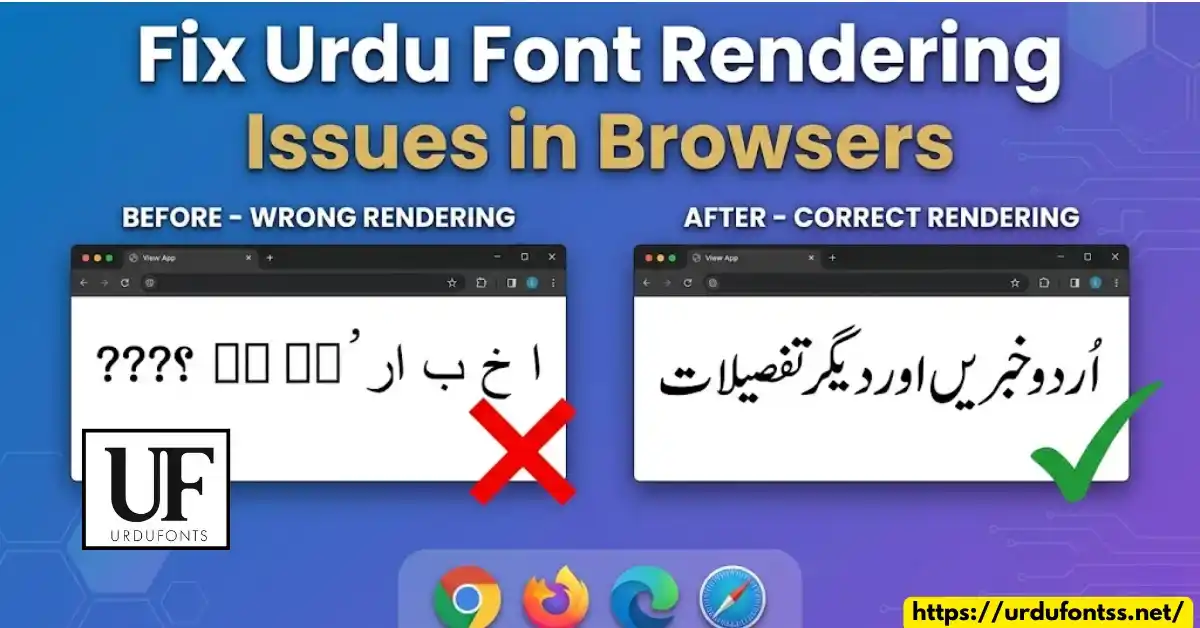
How to Fix Urdu Font Rendering Issues in Browsers – Complete Guide

If Urdu text looks broken, disconnected, or runs left-to-right on a website, the problem is font rendering — the browser is not shaping the letters correctly — not a missing download. In most cases the fix is one of three things: the page declares the wrong encoding or direction, the browser’s font fallback picks a font without Urdu shaping, or no Unicode Urdu font is installed on the device. This guide diagnoses your exact symptom and gives the fix per browser, plus the CSS a site owner needs to make Urdu render right for everyone.
Seeing boxes (□) or question marks instead of letters? That is a different problem — a missing font on the device — and it is covered in our guide to fixing boxes and question marks. This page is about text that renders, but renders wrong.
Table of Content
Table of Contents
Diagnose Your Symptom First
- Letters disconnected or in the wrong order: the browser is not applying Urdu’s joining rules — usually a font-fallback problem (the active font lacks proper shaping) or the page forgot to declare right-to-left direction.
- Urdu runs left-to-right: the page or app is missing
dir="rtl"(or CSSdirection: rtl) — the letters are fine, the line direction is wrong. - Correct in one browser, broken in another: the two browsers are falling back to different fonts — the fix is a better font stack or installing a Unicode Urdu font on the device.
- Broken on someone else’s device but fine on yours: their device has no Urdu-capable font — a site-owner problem, fixed with an embedded web font (see CSS fixes below).
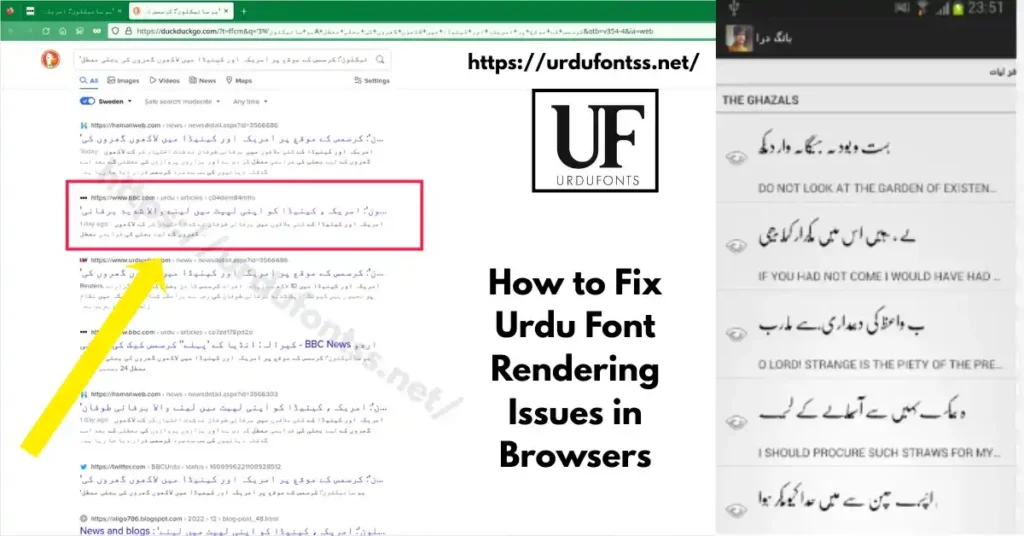
Fix Rendering in Google Chrome
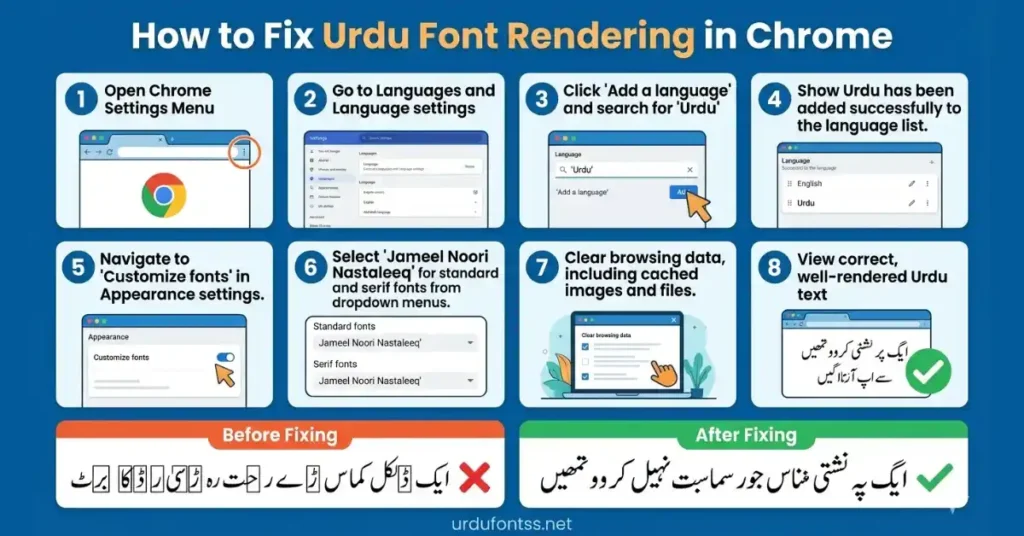
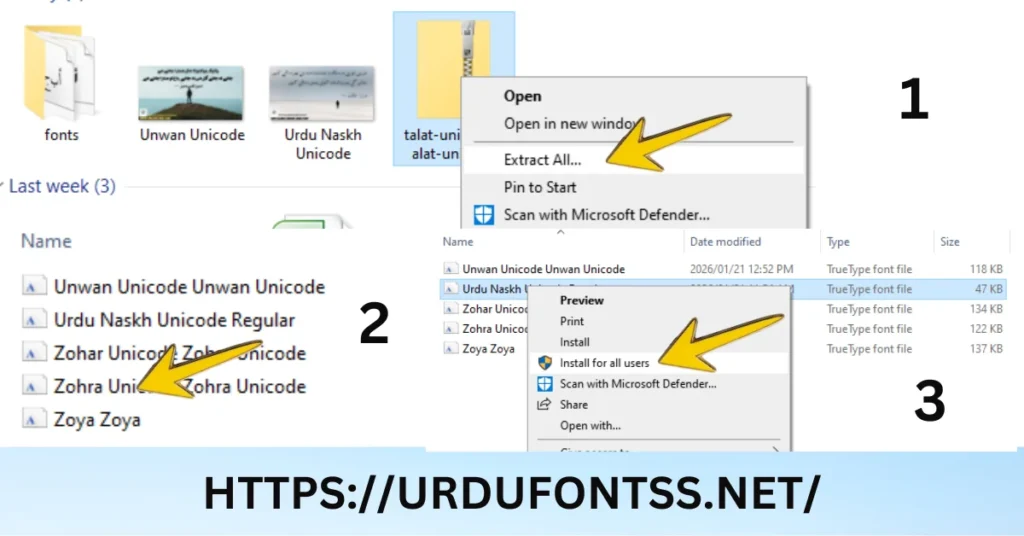
- Install a Unicode Urdu font on the device. Chrome renders with system fonts first — without a Unicode Urdu font (for example Jameel Noori Nastaleeq or Urdu Naskh Unicode), it falls back to whatever the page suggests. Download from the font’s page, then right-click the TTF and choose Install — see our PC install guide.
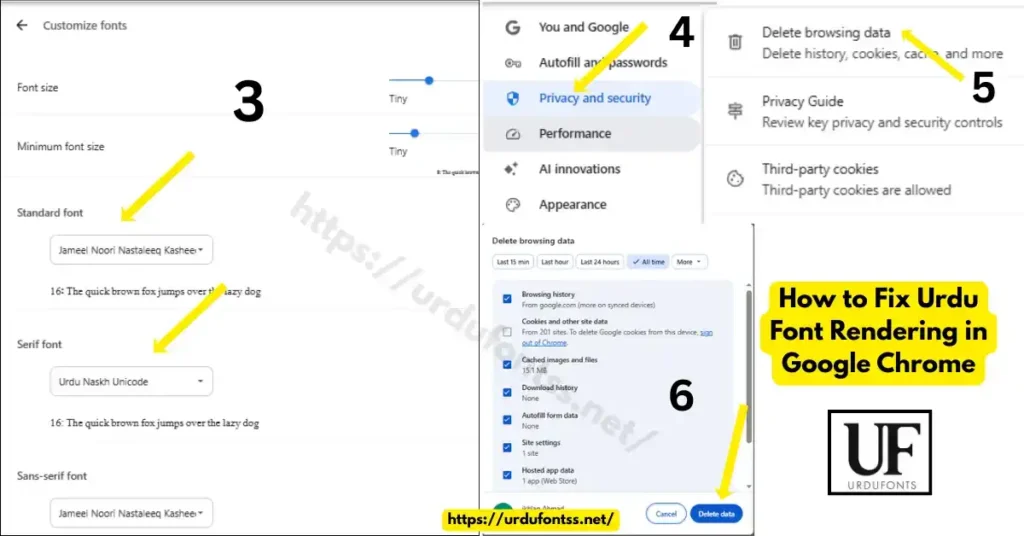
- Set Chrome’s font fallback. Open Chrome Settings → Appearance → Customize fonts. Set the Standard font to an Urdu-capable font such as Jameel Noori Nastaleeq and the Serif font to Urdu Naskh Unicode. Restart Chrome.
- Clear the browser cache. Old cached stylesheets can keep the broken rendering — open Settings → Privacy and security → Delete browsing data, tick “Cached images and files”, and clear.
Fix Rendering in Mozilla Firefox
- Install a Unicode Urdu font on the device (same as Chrome — Firefox also leans on system fonts).
- Set Firefox’s default fonts. Open Settings → General → Fonts, and choose an Urdu-capable font (Jameel Noori Nastaleeq or Urdu Naskh Unicode) as the default serif/sans font.
- Let pages choose their own fonts. In the same Fonts panel, keep “Allow pages to choose their own fonts, instead of your selections above” ticked — well-built pages ship their own Urdu web font, and unticking this can force a worse fallback.
- Toggle hardware acceleration only if text looks garbled. If Urdu looks smeared or ghosted, try Settings → General → Performance → uncheck “Use hardware acceleration when available”. This is a rare cause — leave it enabled unless you see actual smearing.
Fix Rendering in Microsoft Edge
- Install a Unicode Urdu font on the device (same first step as Chrome — Edge is Chromium-based).
- Check Edge’s font settings. Open Settings → Appearance → Customize fonts and set an Urdu-capable font as the standard font, exactly like Chrome.
- Confirm Windows has Urdu language support. Open Windows Settings → Time & language → Language & region → Add a language → Urdu. This gives Edge (and the whole system) Urdu text shaping. Our Urdu keyboard on Windows guide covers this flow.
Fix Rendering in Safari (Mac)
- Install a Unicode Urdu font via Font Book. Double-click the downloaded TTF and click Install — macOS makes it available to Safari immediately. See our Mac install guide.
- Check Safari’s font settings. Safari → Settings → Advanced → set the default encoding to Unicode (UTF-8) if pages render oddly. Safari normally auto-detects; only change this if the page shows mojibake-style garbled text.
- Restart Safari after installing. Safari reads the font list at launch — quit it fully and reopen.
What to Check on the Page Itself
If a page renders Urdu wrong in every browser, the page itself is the problem, not your settings:
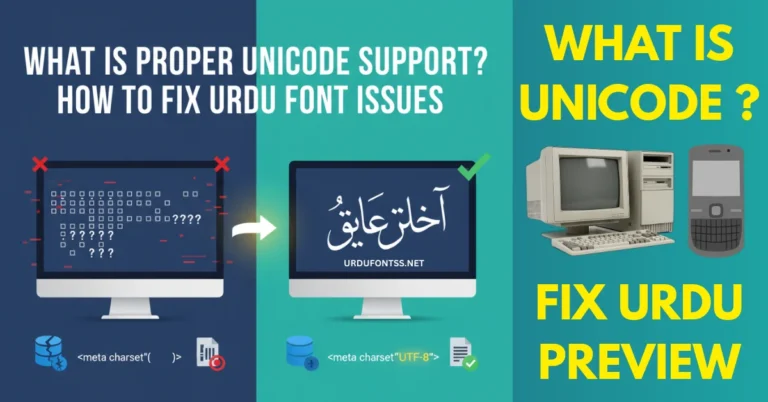
- Character encoding: the page must declare UTF-8 — look for
<meta charset="UTF-8">in the page source. Without it, Urdu arrives as garbled characters. - Text direction: Urdu content needs
dir="rtl"(or CSSdirection: rtl; unicode-bidi: embed;). Missing direction is the classic cause of left-to-right Urdu. - Font-family stack: the page’s CSS should name an Urdu-capable font — if it names only Latin fonts, the browser substitutes one, and the substitute may shape Urdu badly.
CSS Fixes for Website Owners
If you run a website and visitors report broken Urdu, do not tell them to change settings — ship the font with your site:
/* 1. Embed a Unicode Urdu font so every visitor gets it */
@font-face {
  font-family: "UrduNaskh";
  src: url("/fonts/UrduNaskhUnicode.ttf") format("truetype");
}

/* 2. Apply it to Urdu content, with fallbacks */
.urdu-text {
  font-family: "UrduNaskh", "Jameel Noori Nastaleeq", serif;
  direction: rtl;
  unicode-bidi: embed;
}- Embed, don’t assume:
@font-faceputs the font in the page — visitors without any Urdu font still see correct text. - Always declare direction:
direction: rtlon Urdu blocks fixes the left-to-right symptom at the source. - Declare UTF-8:
<meta charset="UTF-8">in the head, plus<html lang="ur">so browsers know the language. - Only embed fonts you may redistribute: check the font’s licence before hosting the file — embedding is redistribution.
Preventing Rendering Issues
- Keep one Unicode Urdu font installed on every device you read Urdu on — it fixes most browser symptoms permanently.
- Test in two browsers when a page looks wrong — if both break, the page is at fault.
- Prefer Unicode TTFs for downloads: legacy non-Unicode fonts (made for old Windows apps) render badly in browsers — download from this site’s Urdu fonts category, which hosts Unicode fonts.
- For Windows installs, our step-by-step guide on how to install Urdu fonts on Windows for browsers walks through the full flow.
Common Problems & Solutions
| Problem | Solution |
|---|---|
| Urdu letters disconnected in the browser | The fallback font lacks proper shaping — install a Unicode Urdu font and set it in the browser’s font settings |
| Urdu runs left-to-right | The page is missing RTL direction — as a visitor, report it to the site; as an owner, add dir=”rtl” or CSS direction: rtl |
| Works in Chrome but broken in Firefox | Different font fallbacks — set an Urdu-capable font as the default in both browsers |
| Fine on my device, broken on others | Their devices lack an Urdu font — embed one with @font-face on the site |
For the full range of general font failures, see the common Urdu font problems and fixes guide.
Final Words
Browser rendering problems are almost always one of three things: the page’s encoding or direction, the browser’s font fallback, or a missing Unicode font on the device. Install one good Unicode Urdu font, set it in your browser’s font settings, and the symptoms disappear. Site owners should go one step further and embed the font — then it works for every visitor, on every device, with no settings changes.
Frequently Asked Questions (FAQs)
Why is Urdu text not displaying correctly in my browser?
Usually a rendering problem, not a missing download: the browser’s fallback font shapes Urdu badly, the page forgot right-to-left direction, or the page declares the wrong encoding. Installing a Unicode Urdu font and setting it in the browser’s font settings fixes most cases.
How do I fix Urdu font rendering in Chrome?
Install a Unicode Urdu font (Jameel Noori Nastaleeq or Urdu Naskh Unicode), open Chrome Settings → Appearance → Customize fonts, set it as the standard font, and clear the browser cache.
Which Urdu fonts work best in web browsers?
Unicode fonts with proper shaping: Jameel Noori Nastaleeq for Nastaliq and Urdu Naskh Unicode for Naskh. Non-Unicode fonts made for old Windows apps render badly in browsers.
Why does Urdu text show left to right instead of right to left?
The page is missing its direction declaration. Site owners fix this with dir=”rtl” or CSS direction: rtl on the Urdu content — visitors cannot fix it from their browser settings.
How do I add Urdu fonts to my website so they render correctly?
Embed a Unicode Urdu font with @font-face, declare UTF-8 in the head, add dir=”rtl” on Urdu blocks, and check the font’s licence allows embedding (redistribution).
Urdu works in one browser but not another. Why?
Each browser falls back to a different font when the page doesn’t supply one. Set an Urdu-capable font as the default in both browsers’ font settings.
Is this different from Urdu showing as boxes?
Yes. Boxes mean no font on the device can display the text at all; broken shaping or wrong direction means a font is active but rendering it badly. For boxes, see the boxes and question marks guide.



8 Comments